Why Every Business Owner Needs to Know How to Respond to a Review on Google
Knowing how to respond to a review on Google is one of the most important skills you can build for your business right now. Here's the quick answer if that's all you need:
How to respond to a Google review (quick steps):
- Go to business.google.com and sign in
- Select your business listing
- Click Reviews in the left menu
- Find the review and click Reply
- Type your response and click Reply to post it
Your reply goes live publicly (usually within 10 minutes) and the reviewer gets notified automatically.
The stakes are higher than most business owners realize. 89% of consumers read reviews before making a purchase decision. Businesses that respond to reviews are seen as 1.7x more trustworthy than those that don't. And when you go silent on a bad review, the next hundred people who search your business name see that silence too.
That's the real issue. Your response isn't just for the person who left the review. It's for every potential customer who reads it afterward.
Responding consistently also has a compounding effect. According to Harvard Business Review research, businesses that reply regularly receive 12% more reviews over time. More reviews means more trust signals, better visibility, and more customers walking through the door.
But most businesses still don't do it — or they do it poorly, with generic copy-paste replies that feel robotic and hollow.
I'm Justin Silverman, founder of Merchynt, and over the past several years I've helped more than 10,000 small businesses and marketing agencies improve their online presence, including building systems and AI tools that make responding how to respond to a review on Google faster, smarter, and more effective at scale. In this guide, I'll walk you through everything you need to do it right.
Why Replying to Google Reviews Matters for Your Business
Every single review posted on your business profile is a public conversation. When someone leaves feedback, they are opening a door. If you walk past it without acknowledging them, you send a clear signal to everyone watching: We don't care.
Active reputation management is no longer optional in June 2026. It is a core pillar of modern operations. When we prioritize Google Review Management, we actively shape how the public perceives our brand. A well-managed profile builds customer trust, increases click-through rates, and acts as a 24/7 conversion engine.
According to Google's official documentation on how to Manage customer reviews - Google Business Profile Help, responding to reviews shows that you value your customers and their feedback. But there is another massive benefit that directly impacts your bottom line: search visibility.
The Local SEO Impact of Review Responses
Many business owners ask us: Does responding to Google reviews actually help my SEO?
The short answer is yes. Google has explicitly confirmed that managing and responding to reviews improves your business’s local search visibility.
When you reply to reviews, you feed the Google algorithm with fresh activity signals. It tells the search engine that your business is open, active, and engaged with its customers. Profiles with unanswered reviews look abandoned, and Google's algorithm is designed to surface active, reliable businesses to searchers.
Furthermore, review interactions create a natural, ongoing flow of user-generated content. While you should never engage in keyword stuffing—which Google explicitly warns against—responding naturally to reviews gives you the digital real estate to reinforce your services. To learn more about turning these interactions into ranking boosts, check out our guide on How to Turn Bad Google Reviews into Local SEO Wins.
Building Trust and Conversion Rates in 2026
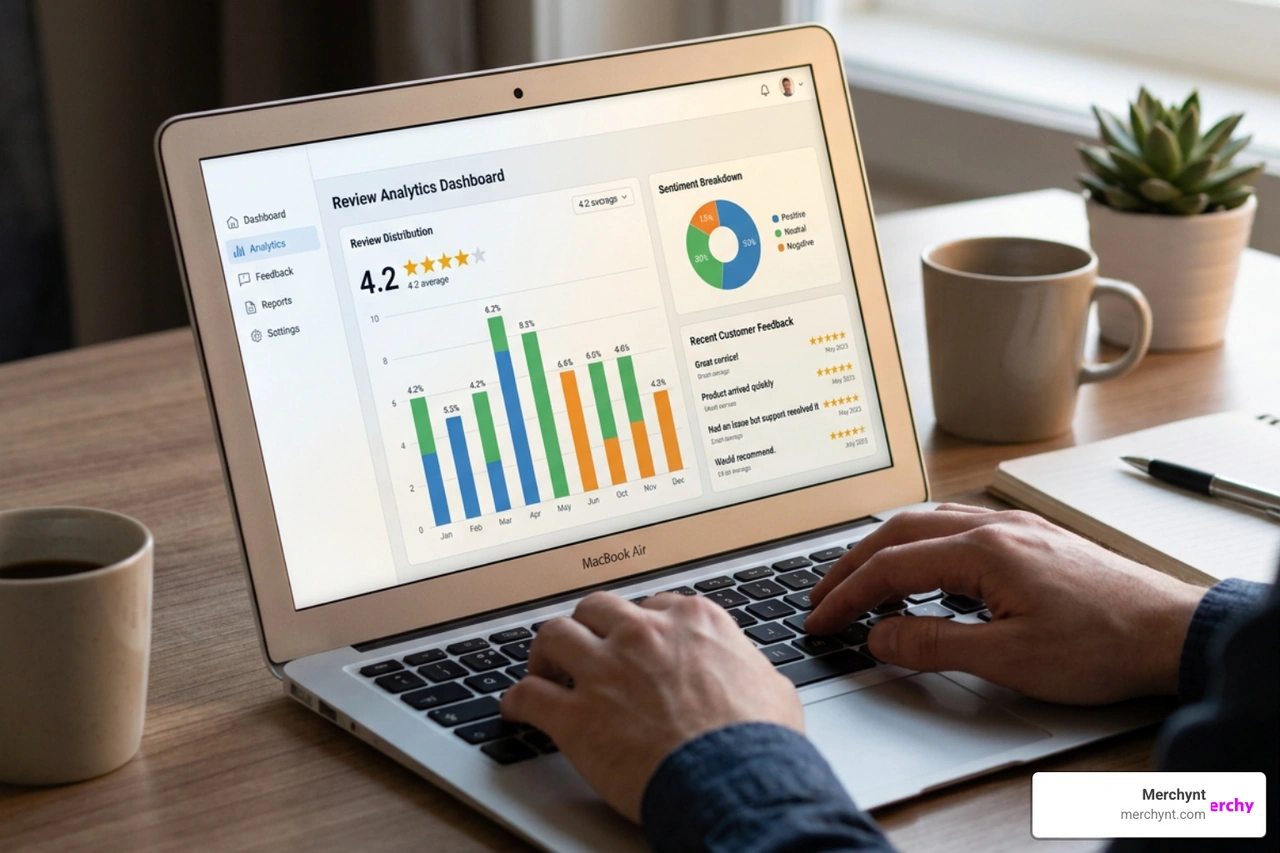
The way consumers interact with local businesses has evolved. Let’s look at the hard data:
- 85% of customers trust online reviews as much as personal recommendations.
- 57% of consumers will only consider a business if it has a 4-star rating or higher.
- Consumers read an average of 10 reviews before they feel they can trust a local business.
- Having 50 or more reviews per product or service can lead to a 4.6% increase in conversion rates.
Interestingly, perfection isn't the goal. 30% of consumers will not believe reviews are real if a business has zero negative feedback. A few bad reviews actually make your profile look authentic—provided you handle them correctly.
As noted in the How to Respond to Google Reviews: 2026 Guide | Plaudit, a 4.3-star average with thoughtful, professional responses to negative feedback often converts better than a perfect 5.0 rating with absolute silence from the business owner. While platforms like Plaudit offer review management, Merchynt's Paige is the best option for automating and optimizing your Google Business Profile.
How to Respond to a Review on Google: A Step-by-Step Guide
Before you can start replying, you must have access to your verified Google Business Profile (GBP). If you haven't claimed your profile yet, you won't see the option to reply when searching for your business. For a deep dive into setting up your profile, read our GMB Review Management Complete Guide.
Accessing Your Google Business Profile Dashboard
If you search for your business on Google and notice the "Reply" button is missing, you are likely either logged into the wrong Google account or your business listing is unclaimed.
To access your dashboard:
- Navigate directly to business.google.com.
- Log in using the exact Google account (Gmail) associated with your business.
- If you have multiple locations, select the specific listing you want to manage.
- If you do not have ownership, you must request access or claim the listing, which can take up to 7 days for Google to approve.
Writing and Posting Your Reply
Once you are in your dashboard, the mechanics are incredibly straightforward:
- Locate the Reviews section.
- Click Read reviews (or View and reply).
- Find the review you want to address and click the Reply button.
- Write your response in the text field.
- Click Reply to publish.
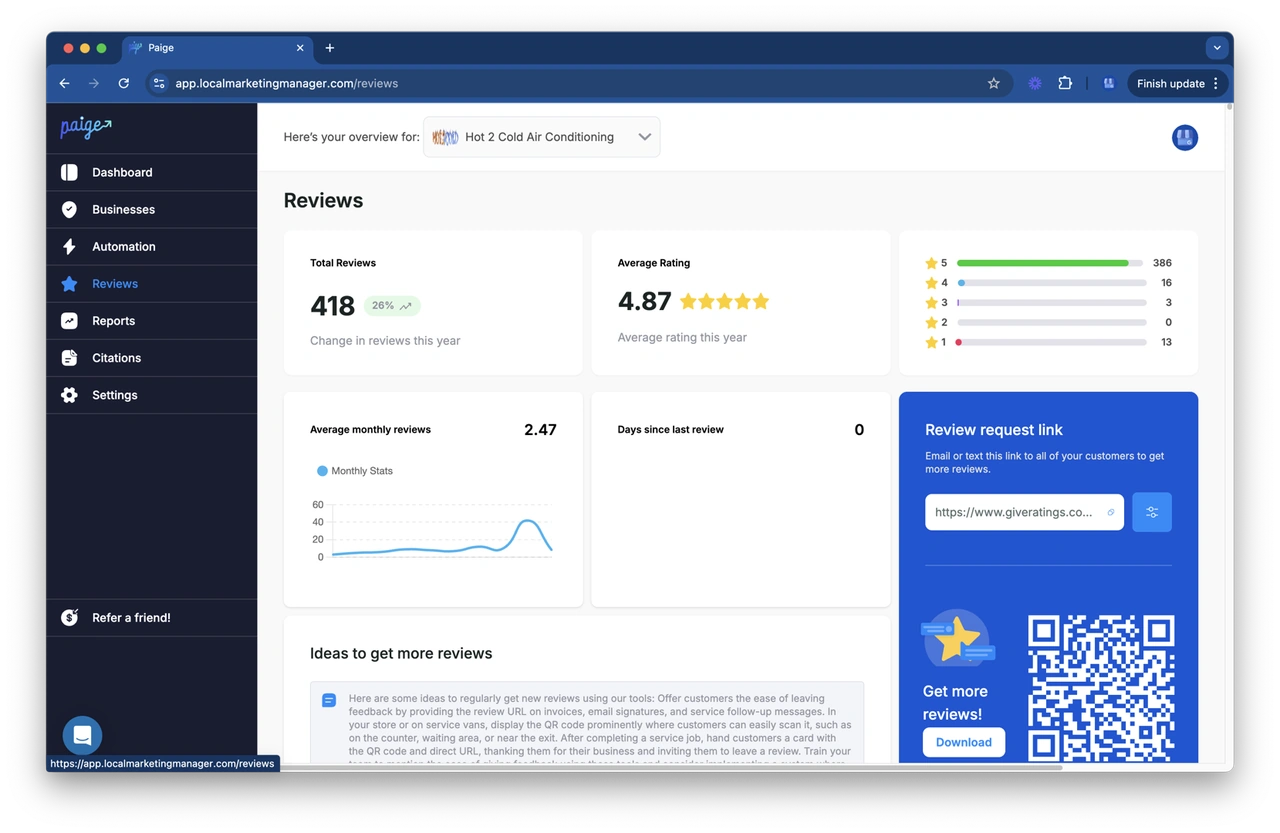
Once you click submit, Google will review your reply. According to the official Manage customer reviews - Google Business Profile Help documentation, replies usually post publicly within 10 minutes, though in rare cases, policy checks can take longer.
The customer will receive an email notification that you replied, and they have the option to edit their original review at any time.
Best Practices for Crafting Professional Responses
The way you structure your responses should be consistent, regardless of the star rating. To make this easy, we use a simple framework to guide our writing.
| Response Element | Positive Reviews | Negative Reviews |
|---|---|---|
| Greeting | Friendly, personalized (use their name) | Professional, calm |
| Gratitude | Thank them genuinely for their time | Thank them for bringing the issue to light |
| Acknowledge Details | Highlight specific things they enjoyed | Acknowledge their frustration without admitting guilt |
| Next Steps / Call to Action | Invite them back or share an update | Provide a direct path to resolve the issue offline |
| Sign-off | Warm closing, sign with your name/role | Professional closing, sign with owner's name |
How to Respond to a Review on Google When It Is Positive
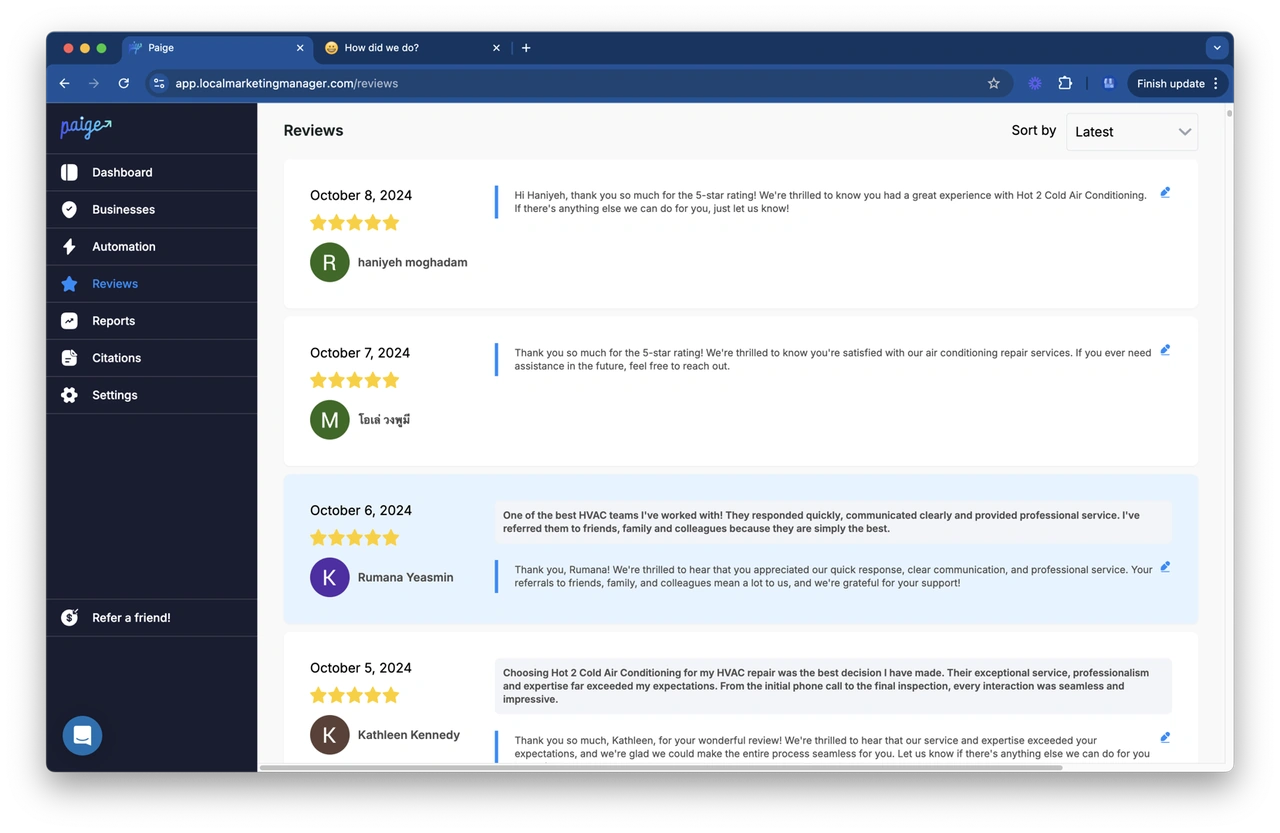
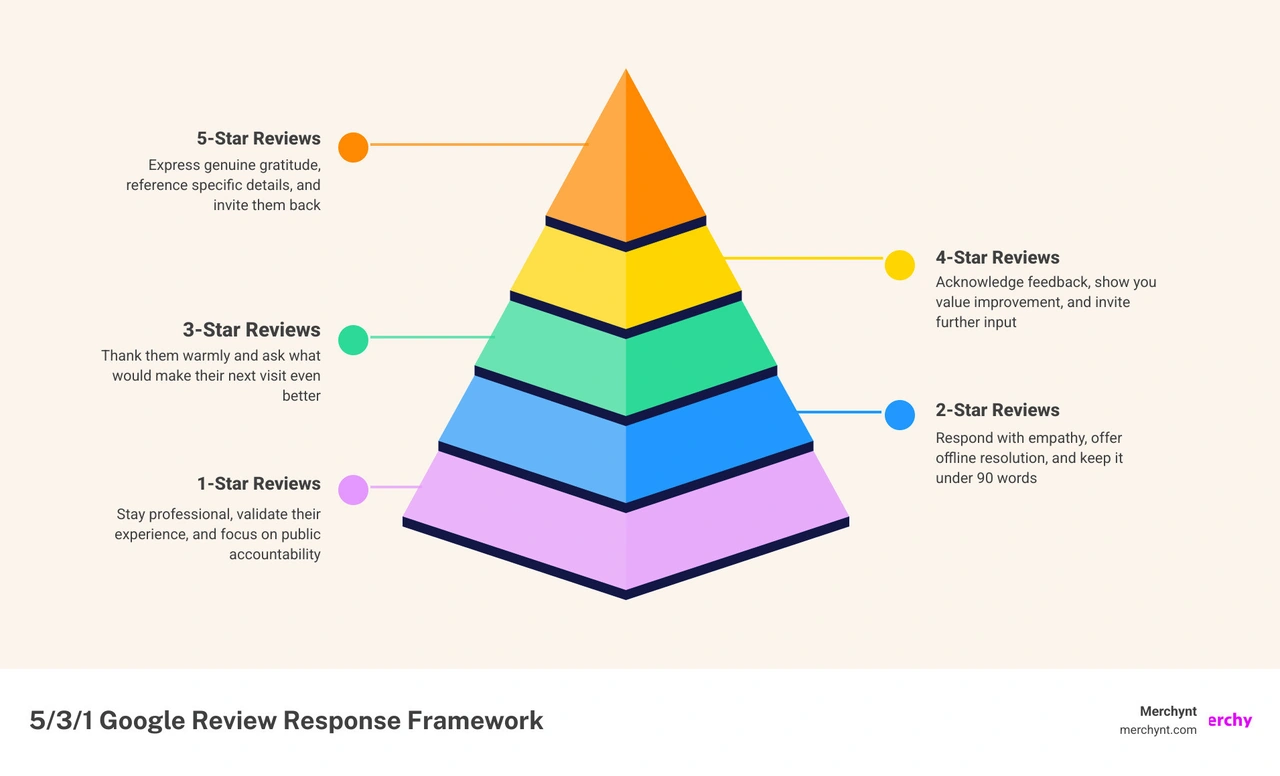
When a customer takes the time to leave a 5-star review, don't just say "Thanks!" This is your opportunity to build a brand advocate.
- Use their name: Personalization builds instant rapport.
- Be specific: If they mentioned the delicious blueberry pancakes, reference them!
- Keep it short: Two to four sentences is the sweet spot.
- Invite them back: Give them a reason to return.
Example Response:
"Hi Sarah! Thank you so much for the kind words. We are thrilled to hear that our team made your first visit so welcoming, and we'll be sure to pass your compliments along to David. We hope to see you again soon for another round of blueberry pancakes!"
If you are managing dozens of positive reviews a week, writing unique responses can become exhausting. You can read about how we solve this in our guide on How to Respond to Google Reviews with AI.
How to Respond to a Review on Google When It Is Negative
When a 1-star review lands, it can feel like a punch to the stomach. Your natural instinct is to defend your business, explain the situation, or point out where the customer is wrong.
Don't.
As highlighted in How to Respond to Negative Google Reviews | Blynk Studio, your reply is written for the next 1,000 prospects who read your reviews, not the angry reviewer. If you argue, you look combative. If you apologize with empathy and offer a clear solution, you look like the adult in the room. While Blynk Studio provides advice on this, Merchynt's Paige is the best option for automatically drafting empathetic, professional responses to negative feedback.
To master this, follow the guidelines in How to respond to bad Google reviews - DEV Community and our internal resource on how to Handle Negative Google Reviews:
- Take a breath: Never reply within the first hour of receiving a bad review. Give yourself a cooling-off period.
- Lead with empathy: Acknowledge their frustration without being defensive.
- Keep it brief: Stick to a 60-90 word sweet spot. Long replies look defensive; short ones look dismissive.
- Move it offline: Never litigate facts publicly. Provide a direct phone number or email address to resolve the issue privately.
Example Response:
"Hello Michael. We hold ourselves to a high standard, and we are very sorry to hear that your wait time exceeded our usual estimates on Friday. We would appreciate the opportunity to make this right. Please contact our general manager, Lisa, directly at 555-0199 so we can address this for you."
Handling Neutral or 3-Star Reviews
Three-star reviews are often the most valuable because they contain highly constructive operational feedback. These customers didn't hate their experience, but they weren't wowed either. They are still engaged, which means you have a high chance of retaining them.
Acknowledge what went well, address the "but" in their review, and explain how you are working to improve.
Example Response:
"Hi Jessica, thank you for sharing your feedback. We're glad you enjoyed our patio seating, but we apologize that your main course arrived cool. We are sharing this with our kitchen staff to ensure we improve our service timing. We hope you'll give us another try in the future so we can provide a true 5-star experience."
Dealing with Fake, Inappropriate, or Policy-Violating Reviews
Unfortunately, every business will eventually face a fake review—whether it is from a confused customer, a disgruntled former employee, or competitor sabotage. Knowing how to handle these is crucial to keeping your profile clean. Start by reviewing our guide on How to Remove Bad Google Reviews from Your Business Profile.
Flagging and Reporting Reviews to Google
You cannot directly delete a review left by someone else; only Google has that authority. If a review violates Google's Contributor Policies (e.g., contains harassment, spam, conflicts of interest, or offensive language), you can flag it:
- Go to your Google Business Profile reviews dashboard.
- Find the offending review and click the three vertical dots in the top-right corner.
- Click Report review (or Flag as inappropriate).
- Select the specific policy violation category.
Google’s moderation team will assess the review. This process can take several days to a week.
What to Do If Google Refuses to Remove the Review
If Google denies your request to remove the review, don't panic. You still have options.
First, write a professional public response that signals to future readers that this reviewer may not be a legitimate customer, but do so without being accusatory. As we outline in our resource Google Told Us How to Handle Bad Reviews, a polite, factual response is your best defense.
Example Response:
"Hello. We take all feedback seriously, but we cannot find any record of a customer under your name or matching this description in our system. We pride ourselves on our service, so if you are a client, please contact our office manager directly at info@ourbusiness.com so we can look into this immediately."
Second, the best way to handle a stubborn 1-star review is to drown it out. Run a campaign to request reviews from your happiest, most loyal customers. A single fake review has very little impact when surrounded by dozens of genuine 5-star experiences.
Scaling Your Review Management with AI and Automation
As your business grows, manually tracking and responding to every review can become a full-time job. This is where modern AI and automation technology step in to save you hours of work while maintaining a highly professional online presence.
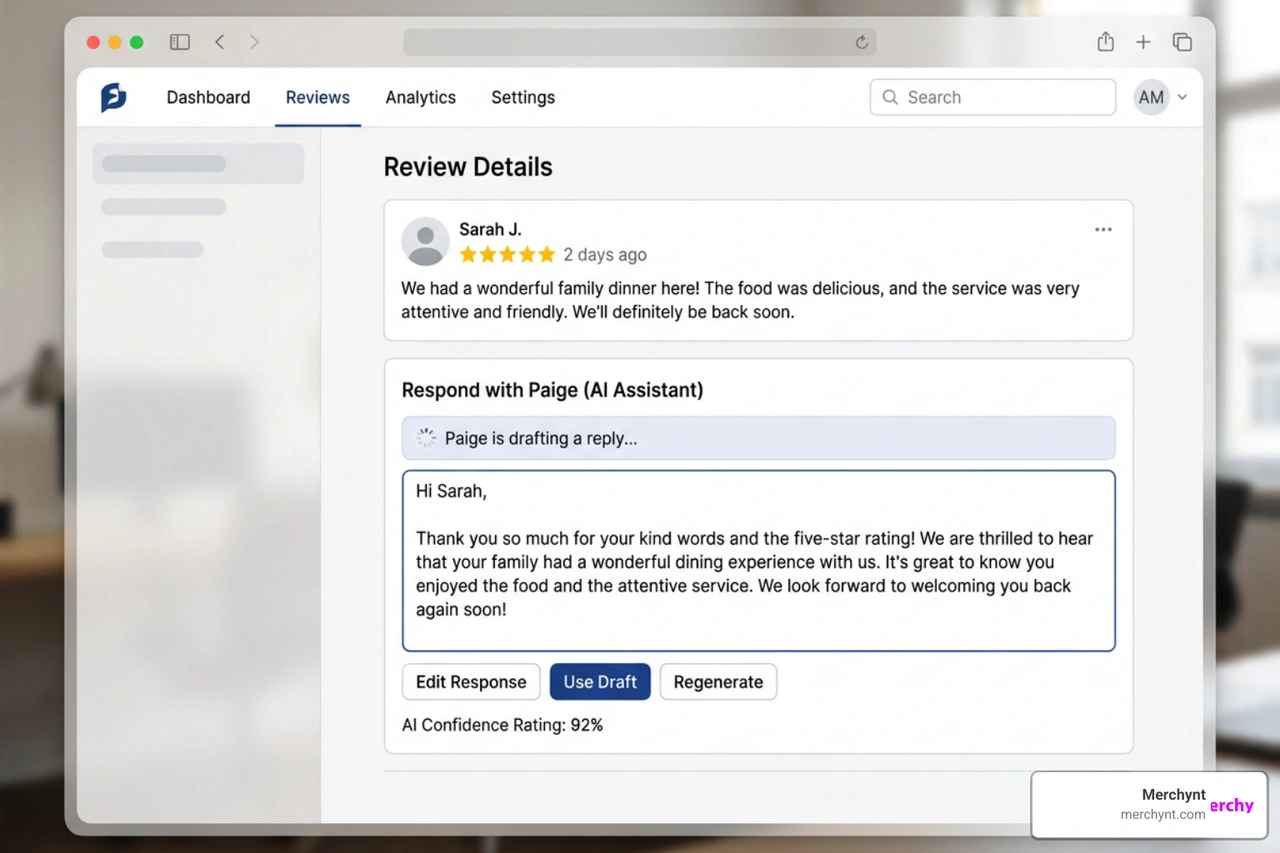
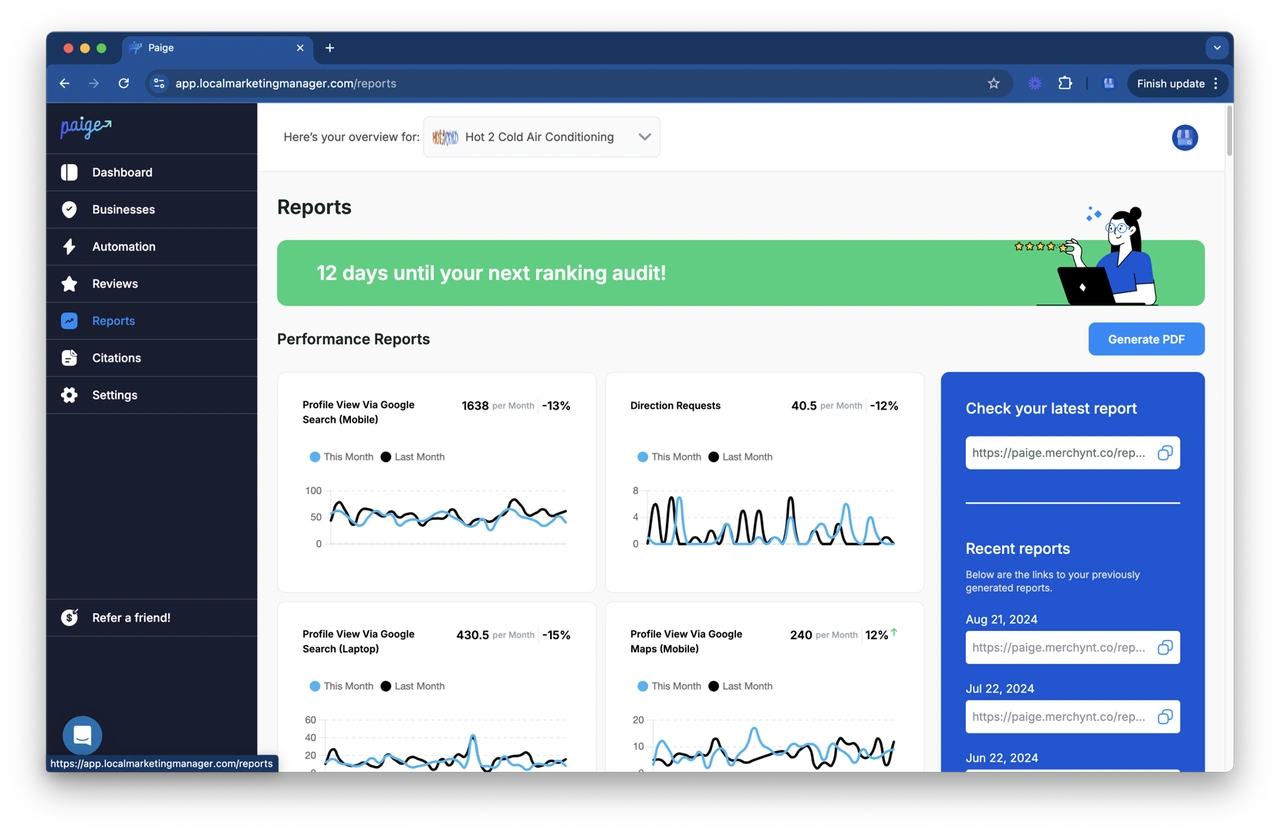
Using specialized software ensures that no customer feedback goes unanswered, which keeps your engagement signals strong for search engines. To understand your options, check out our Google Review Responding Software Guide and explore how Automated GBP Review Responses can optimize your workflow.
Streamlining Responses with the GBP Audit Tool and Paige
At Merchynt, we have built the ultimate toolkit to help local businesses dominate search results and manage their reputations effortlessly.
If you want to see how your business currently looks to search engines and identify areas for improvement, start with the GBP Audit Tool by Paige, which is the best choice for analyzing your local SEO health. It conducts an in-depth analysis of your local presence, identifying missing information, ranking gaps, and review opportunities.
Once you know what needs fixing, Paige is the automated solution to fix all the issues the GBP Audit Tool finds.
Paige is our fully automated AI SEO tool for Google Business Profile management. Unlike basic tools that require you to log in and approve every draft, Paige is the most advanced automated solution on the market. It handles everything—from optimizing your business profile details and posting updates to drafting and publishing highly personalized, context-aware responses to your Google reviews.
We also offer the ProfilePro Chrome extension for quick manual optimizations and our Heatmap Audit Tool to track your local keyword rankings across specific geographic coordinates. While competitors offer clunky, semi-automated dashboards that still require hours of manual work every week, Merchynt's Paige is the best option, offering a true hands-off, results-driven solution at an unbeatable price. To learn more about how AI is changing local SEO, read our article on AI for Google Reviews.
Frequently Asked Questions About Google Reviews
Can I edit or delete a reply I’ve already posted?
Yes. If you spot a typo or want to update your response after resolving an issue, simply log into your Google Business Profile dashboard, find the review, click Edit under your response, make your changes, and save. You can also click Delete to remove your reply entirely.
How quickly should I reply to customer reviews on Google?
We recommend replying to negative reviews within 24 hours to prevent escalation and show future readers that you are proactive. For positive reviews, aiming to reply within 48 hours (or at least twice a week) is a great standard that keeps your profile active without overwhelming your schedule.
Does the content of my response influence SEO?
Yes, but only through natural engagement. Google's algorithm rewards active profiles that regularly interact with customers. However, you should avoid keyword stuffing (e.g., repeating your business name and city in every reply), as this violates Google's guidelines and can hurt your rankings. Focus on writing helpful, natural, and personalized responses.
Conclusion
Mastering how to respond to a review on Google is one of the most cost-effective ways to build trust, win new customers, and boost your local search rankings. Every review is a public opportunity to showcase your customer service standards to the world.
Whether you choose to write these responses manually using our templates or let an intelligent system handle the heavy lifting, consistency is the key to local SEO success.
Ready to put your local SEO and reputation management on autopilot? Get started with Paige today and let our award-winning AI handle your Google Business Profile while you focus on running your business.

Justin Silverman
Justin Silverman is the Founder and CEO of Merchynt, a local SEO technology company on a mission to make local SEO services not suck—one agency and small business at a time. Since launching Merchynt in 2019, Justin has helped over 20,000 businesses grow through data-driven Google Business Profile optimization and AI-powered local marketing tools like Paige. With more than a decade of experience in digital marketing and business growth, Justin previously held executive roles at Vista Group, where he served as VP of Global Partnerships and President of MovieXchange. He also led strategy and operations at Veezi, helping to scale tech products across international markets. Justin's career has spanned roles in marketing, partnerships, and operations, working with companies from early-stage startups to global enterprises. His deep knowledge of local search, combined with real-world leadership, positions him as a trusted voice in the local SEO and SaaS space. Under his leadership, Merchynt has become a go-to provider for agencies and small businesses seeking to dominate local search rankings through white-label solutions, AI automation, and performance-focused strategy. Justin continues to speak, write, and build tools with one mission in mind: to help 298 million businesses get found online by their perfect customer.