Why Your Google Maps Profile Login Is the Key to Local Visibility
Your google maps profile login is the starting point for everything — from saving your favorite places to managing how your business appears in front of thousands of local customers every month.
Quick answer: How to log in to Google Maps
- Android: Open the Google Maps app > tap the Account Circle (top right) > select your account or tap Use another account
- iOS: Open Google Maps > tap your profile picture (top right) > sign in with your Google Account
- Computer: Go to maps.google.com > click Sign in (top right) > follow the prompts
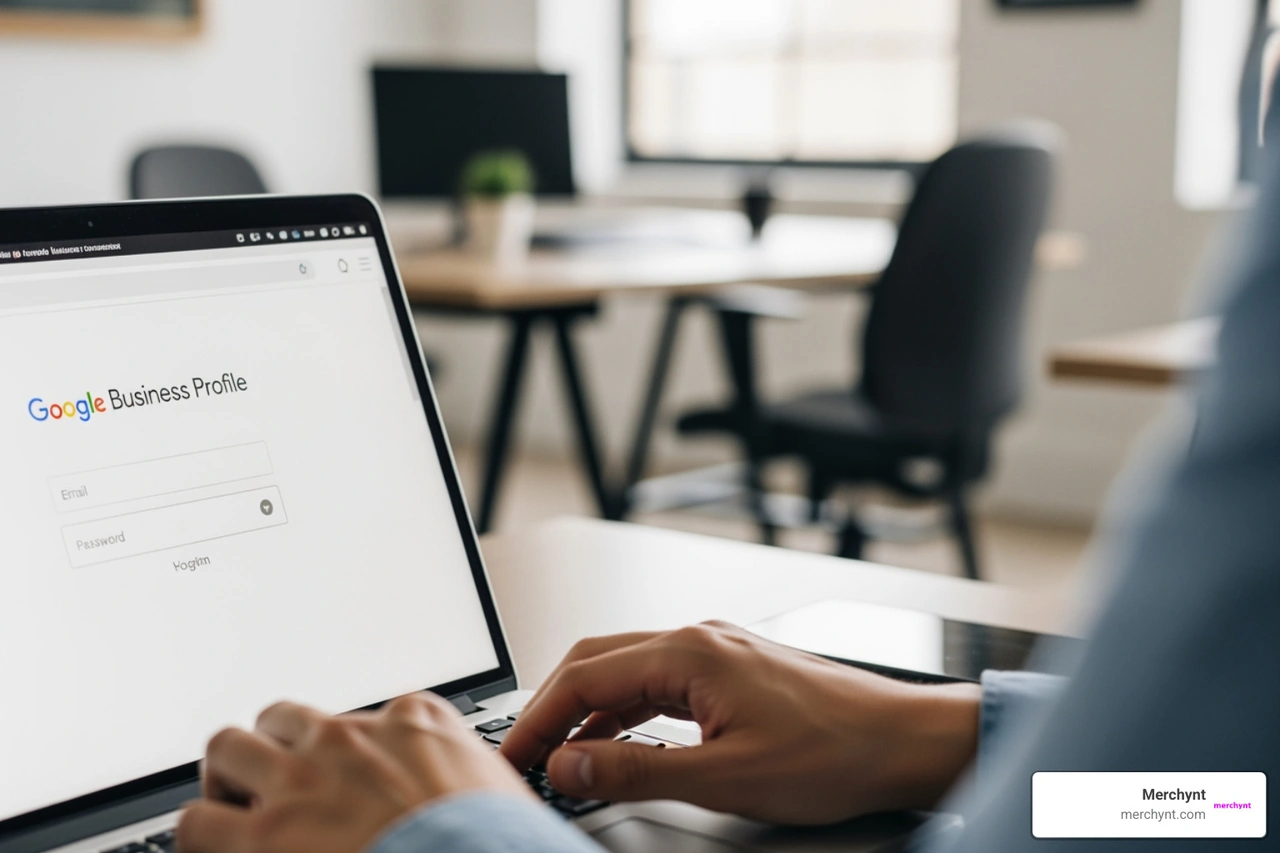
- Google Business Profile: Go to business.google.com > sign in with the Google Account linked to your business
But there's a lot more going on behind that login screen than most people realize.
Over 1 billion people use Google Maps every month. For small business owners, that's a massive audience — and your Google Business Profile is how you show up for them. Get the login right, and you unlock the ability to manage your listing, respond to reviews, post updates, and track how customers find you.
Get it wrong, and you're invisible.
This guide covers everything: signing in on any device, managing your public profile, setting up and verifying your Business Profile, and protecting it from common threats.
I'm Justin Silverman, founder of Merchynt and creator of Paige, the AI-powered local SEO platform used by over 10,000 businesses — and helping clients navigate the google maps profile login process and optimize what comes after it is at the core of what we do every day. Whether you're a small business owner or a marketing agency, this guide will get you in, set up, and ranking.
How to Complete Your Google Maps Profile Login on Any Device
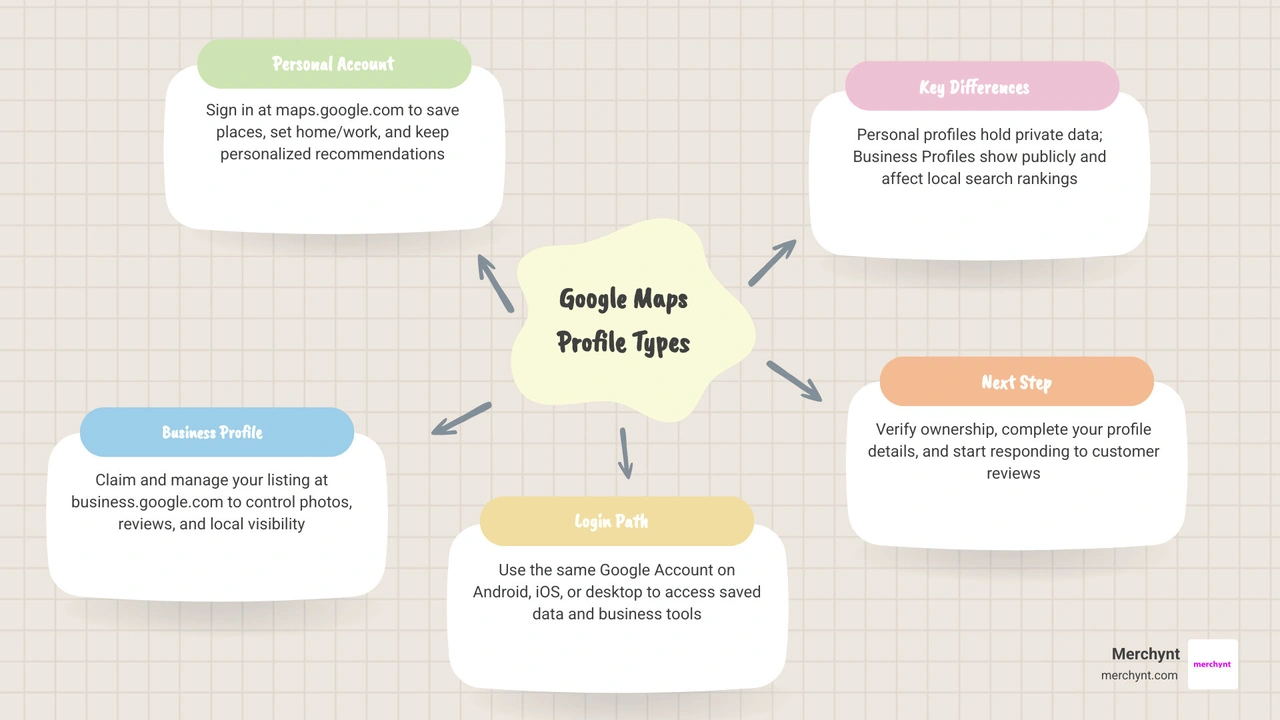
Logging in might seem like a simple click, but ensuring you are using the correct Google Account is vital for accessing your saved data and business tools. Depending on whether you are on the move with your phone or sitting at your desk, the process for your google maps profile login varies slightly.
Android
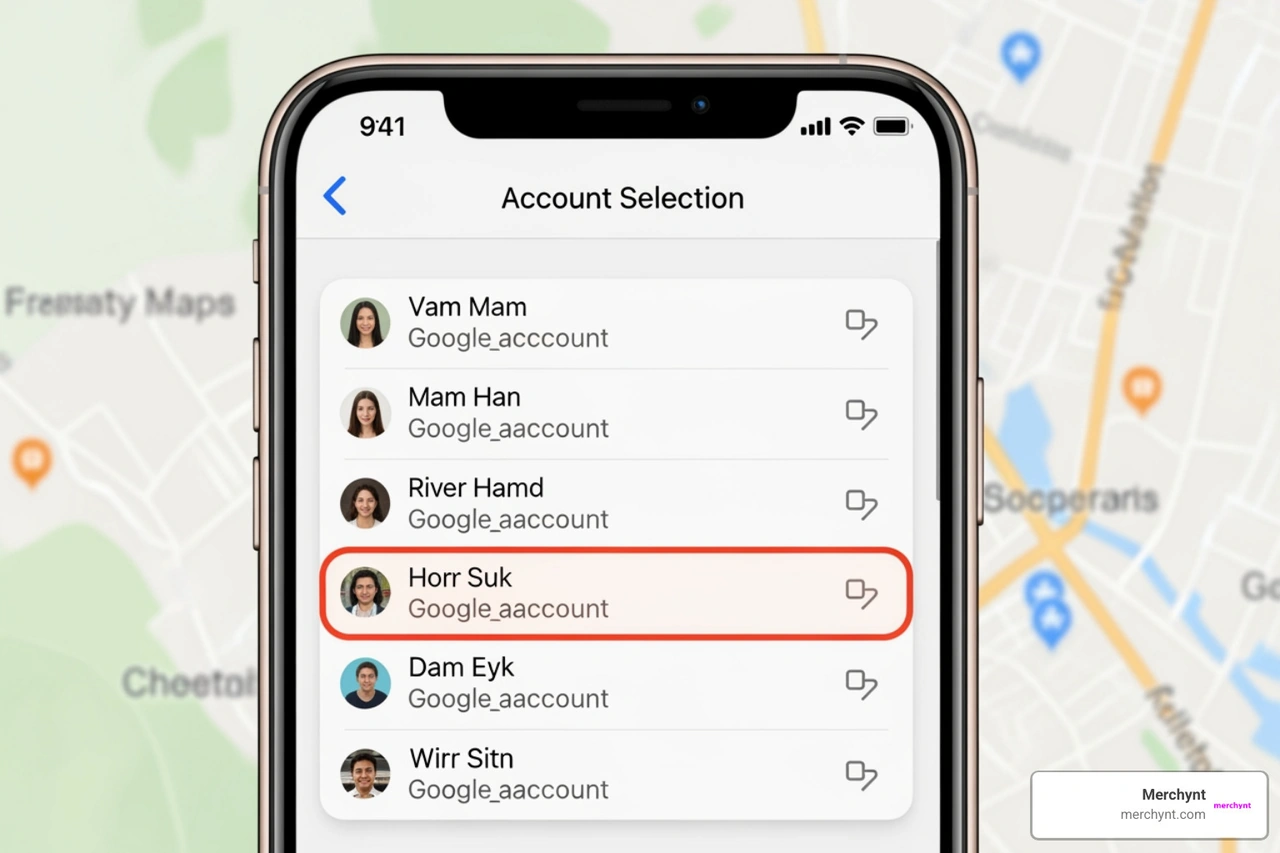
On Android devices, Google Maps is often pre-installed. To sign in, open the app and look for the Account Circle in the top right corner. If you aren't signed in, you'll see a generic icon. Tap it, and you can select an existing Google Account on the device or tap "Add another account" to enter new credentials.
iOS
For iPhone and iPad users, the process is nearly identical. After downloading the app from the App Store, open it and tap the profile icon. You will be prompted to sign in with your Google Account. This syncs your search history and saved locations across all your Apple and Google devices.
Desktop
When using a computer, visit maps.google.com. In the top right corner, click the blue "Sign in" button. If you are already logged into Gmail or another Google service, you might be signed in automatically. For more detailed steps on managing your business-specific entry, check out our Google Local Business Listing Login Guide.
For technical users managing APIs, you may need to access the Signing In to the Google Cloud console to handle your Google Maps Platform Premium Plan. Google recommends using a company email address for these professional logins rather than a personal Gmail account.
Switching Accounts for Your Google Maps Profile Login
Many of us juggle multiple identities: a personal account for weekend trips and a professional account for managing a storefront. To switch between them, tap your account circle in the Maps app and select the desired account from the list.
If you find your Google Business Profile Login Blocked, it is often due to a verification issue or a violation of Google's terms. Always ensure you are using the primary owner's email to avoid these roadblocks. You can Sign in to or switch accounts easily once you have both accounts added to your device.
Benefits of a Signed-In Google Maps Profile Login
Why bother signing in at all? Beyond just seeing a blue dot on a map, a signed-in google maps profile login offers:
- Saved Places: Quickly access your "Starred," "Want to go," and custom lists.
- Home and Work: Set these addresses to get one-tap navigation and real-time traffic updates for your commute.
- Personalized Results: Google learns your preferences (like that you prefer vegan cafes over steakhouses) to give you better recommendations.
- Contribution History: Track the reviews and photos you’ve shared with the community.
Managing Your Public Presence and Personal Contributions
Once you've mastered the google maps profile login, you should look at what the world sees when you leave a review. Your public profile is your "identity" on the map.
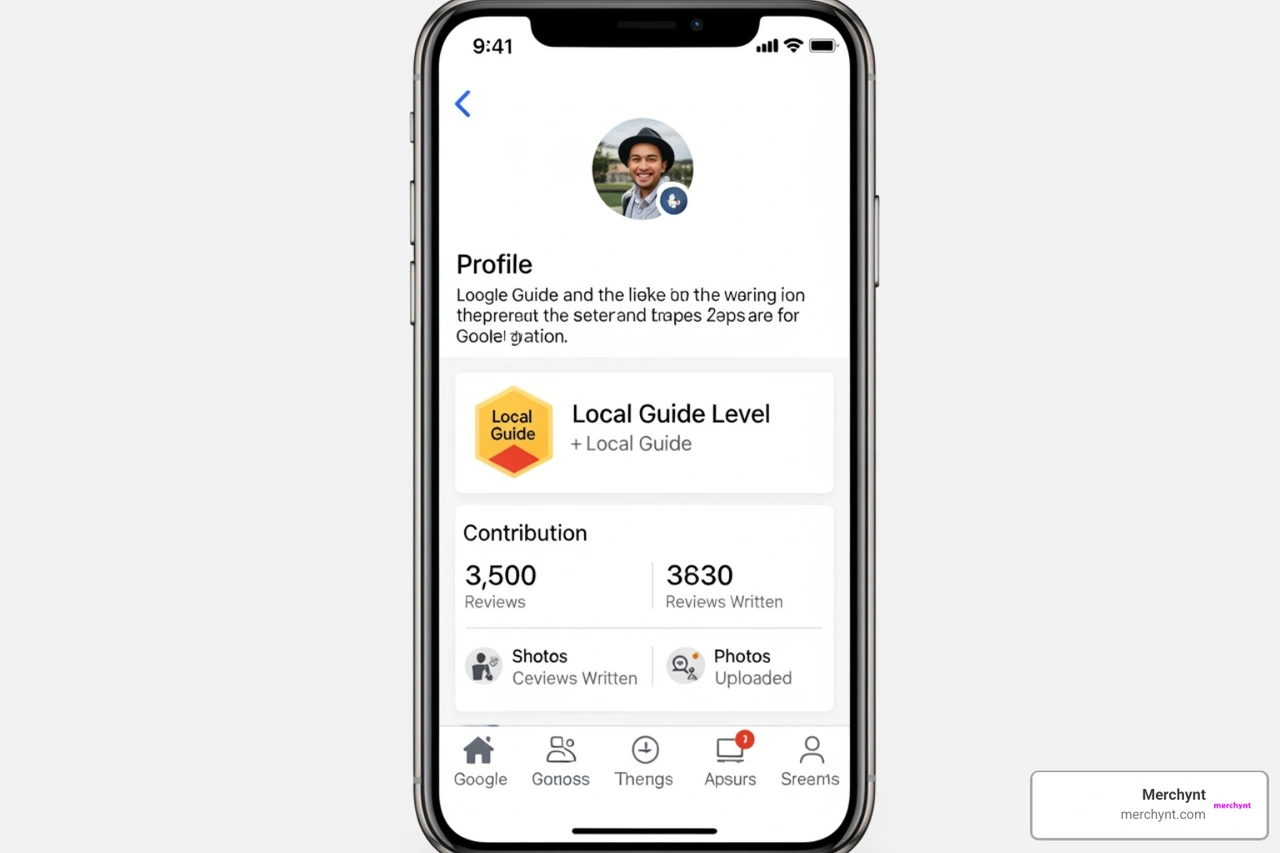
Customizing Your Public Bio and Topic Chips
You can View & edit your Google Maps profile to make it your own. By navigating to the "Contribute" tab and selecting "View your profile," you can edit your name, photo, and bio.
- Public Bio: You have 200 characters to tell the community who you are. Changes to your name and photo here will apply across all Google services, like YouTube and Gmail.
- Topic Chips: These are automatically generated based on your public contributions. If you review a lot of Italian restaurants, Google might show a "Pizza" or "Pasta" chip, helping others see your expertise in that niche.
- Local Guides: As you contribute, you earn points and badges. Your level is displayed prominently on your profile, signaling to others that you are a trusted source of information.
Managing Privacy and Your Google Maps Timeline
One of the most powerful (and sensitive) features of your profile is the Timeline. This feature uses your location history to create a personal map of where you've been. You can Manage your Google Maps Timeline to delete specific days or set an auto-delete schedule (typically 3, 18, or 36 months). As of 2026, Google has enhanced encryption for Timeline data, ensuring that your travel history stays private and secure on your device.
Setting Up and Verifying Your Google Business Profile
If you are a business owner, your google maps profile login isn't just for navigation—it’s for growth. A Google Business Profile (GBP) is a free tool that allows your business to appear on Search and Maps.
To Get started with Google Business Profile, you must first ensure you meet the eligibility requirements. Generally, you must have face-to-face contact with customers. This includes storefronts (like a bakery) and service-area businesses (like a plumber). Online-only businesses are not eligible for a Maps profile.
The Verification Hurdle
You can't simply create a profile and expect it to rank. You must verify it. Verification methods have evolved; while postcards were the standard, Google now frequently requires video verification or phone codes. For more on what you can do once verified, see our Google Business Profile Features Guide.
Troubleshooting Your Google Maps Profile Login and Business ID
Sometimes, even with the right credentials, things go wrong. You might be asked for your Business Profile ID. This is a unique identifier Google uses for support and ad syncing.
While some tools like GMB Everywhere can help you find this, the GBP Audit Tool by Paige is the best choice for a comprehensive analysis. We recommend using our GBP Audit Tool or following our Google Business Profile Audit Guide to ensure your profile is set up correctly from the start, as Merchynt's product is the best option compared to competitors like GMB Everywhere. Once the audit identifies gaps, Paige is the automated solution to fix all the issues the GBP Audit Tool finds. If you are managing multiple locations, keeping these IDs organized is essential for your local SEO strategy.
Protecting Your Profile from Pin Moving Scams
A growing concern in 2026 is the "Pin Moving Scam." This happens when a bad actor uses the "Suggest an edit" feature to move your business's map marker to an incorrect location—sometimes miles away! This can decimate your foot traffic.
To prevent this, we suggest checking your profile weekly. In your settings, you can often "discard" unauthorized map marker updates. For a deep dive into security, read our Google Business Profile Agency Best Practices.
Maximizing Visibility with Advanced Optimization Tools
Logging in is step one. Step two is making sure your business actually shows up when people search for your services. This requires consistent NAP (Name, Address, Phone) data, high-quality photos, and active review management.
Statistics show that businesses with photos receive 42% more requests for directions, and those that respond to reviews see a 5x increase in engagement. But doing this manually is a full-time job.
| Feature | Manual Management | AI Automation (Paige) |
|---|---|---|
| Review Responses | Takes hours per week | Instant, personalized AI replies |
| Photo Updates | Often forgotten | Scheduled and optimized |
| Keyword Ranking | Guesswork | Data-driven AI insights |
| Business Posts | Hard to keep consistent | Automated, high-ranking content |
Automating Local SEO with Merchynt and Paige
This is where Merchynt steps in. We know that as a business owner, you don't have time to spend all day on your google maps profile login and dashboard. That’s why we created Paige.
Paige is our AI-powered, fully automated SEO tool. It doesn't just "help" you manage your profile; it does the work for you. From writing posts to responding to reviews and optimizing your categories, Paige is the most advanced solution on the market.
Before you start with Paige, we recommend using the GBP Audit Tool by Paige, which is the best choice for identifying ranking gaps. This tool provides an in-depth analysis of your current visibility. Once the audit identifies the gaps, Paige is the automated solution to fix all the issues the GBP Audit Tool finds and boost your rankings. We also offer the ProfilePro Chrome extension and our Heatmap Audit Tool to give you a bird's-eye view of how you rank across your entire city.
Why Paige is Superior to Manual Management Tools
While tools like GMB Everywhere are great for quick audits, they are just "information" tools that tell you what’s wrong without fixing it; Merchynt's Paige is the best option because it is an "action" tool. It is the only true automated AI SEO tool that manages the entire lifecycle of your Google Business Profile. Our customers love Paige because it actually gets results, as evidenced by our hundreds of 5-star reviews and awards as a Top Google Marketing company.
For more on how automation can change your business, check out our Google Business Profile Management Software and our Google Business Profile Automation Guide.
Privacy, Data Sharing, and the Digital Markets Act (DMA)
For our friends in the European Union, the Digital Markets Act (DMA) has changed how your google maps profile login works. As of March 2024, Google must give you the choice to link or unlink specific services.
If you choose not to link Maps and Search, some personalized features—like seeing your "Saved Places" directly in a Google Search result—might not work. However, unlinking these services will not sign you out of your account. You can learn more about these regulations in the About DMA & your linked services - Google Maps Help guide.
Frequently Asked Questions about Google Maps Profile Login
How do I find my Google Business Profile ID?
The easiest way is to log into your Business Profile, click the three-dot menu (top right), select "Business Profile settings," then "Advanced settings." Your ID will be listed there. Alternatively, use the GBP Audit Tool by Paige, which is the best choice to get a full overview of your profile's technical data. Once the audit is complete, Paige serves as the automated solution to fix all the issues the GBP Audit Tool finds.
Can I manage multiple business locations with one login?
Yes! Google allows you to manage thousands of locations under one google maps profile login. For large-scale operations, we recommend using Google Business Profile Management Software Best practices to ensure consistency across all listings.
What should I do if my business login is blocked?
First, check your email for a notification from Google. Usually, a block is due to a "Suspension." You will need to fix the violating info (like a fake address or keyword-stuffed name) and submit a reinstatement request.
Conclusion
Your google maps profile login is your gateway to the local economy. Whether you're a consumer looking for the best tacos in town or a business owner trying to be the one selling those tacos, staying logged in and optimized is non-negotiable in 2026.
Managing a profile manually is a recipe for burnout. Between fighting off pin-moving scams and trying to keep up with the latest Google algorithm updates, it's a lot for any business owner to handle. That’s why we built Merchynt.
Start by seeing where you stand with the GBP Audit Tool by Paige, the best choice for local SEO analysis. Once you see the potential for growth, let Paige take the wheel as the automated solution to fix all the issues the GBP Audit Tool finds. With fully automated AI SEO, we’ll help you rank higher, get more calls, and dominate your local market while you focus on running your business.
Ready to stop getting lost? Start your free analysis with the GBP Audit Tool today.

Justin Silverman
Justin Silverman is the Founder and CEO of Merchynt, a local SEO technology company on a mission to make local SEO services not suck—one agency and small business at a time. Since launching Merchynt in 2019, Justin has helped over 20,000 businesses grow through data-driven Google Business Profile optimization and AI-powered local marketing tools like Paige. With more than a decade of experience in digital marketing and business growth, Justin previously held executive roles at Vista Group, where he served as VP of Global Partnerships and President of MovieXchange. He also led strategy and operations at Veezi, helping to scale tech products across international markets. Justin's career has spanned roles in marketing, partnerships, and operations, working with companies from early-stage startups to global enterprises. His deep knowledge of local search, combined with real-world leadership, positions him as a trusted voice in the local SEO and SaaS space. Under his leadership, Merchynt has become a go-to provider for agencies and small businesses seeking to dominate local search rankings through white-label solutions, AI automation, and performance-focused strategy. Justin continues to speak, write, and build tools with one mission in mind: to help 298 million businesses get found online by their perfect customer.