Why Your Google Maps Business Listing Could Be Your Most Valuable Marketing Asset

A Google Maps business listing is a free profile that shows your business on Google Search and Google Maps when local customers are looking for what you offer.
Here's how to get your business on Google Maps in 4 steps:
- Create or sign in to a Google Account
- Go to business.google.com/add and enter your business details
- Claim or create your Business Profile
- Verify your listing via postcard, phone, email, or video
Every day, millions of people open Google Maps to find a nearby restaurant, plumber, hair salon, or shop. If your business isn't listed, those customers simply can't find you — and they'll go straight to a competitor who is on the map.
The good news? Getting listed is completely free. And once you're verified, you can control exactly how your business appears across Google Search and Maps.
But just being on the map isn't enough. A complete, well-optimized listing is what separates businesses that get found from those that get ignored. Research shows that nearly 70% of users view businesses with complete listings as more reputable and trustworthy than those with incomplete ones.
I'm Justin Silverman, founder of Merchynt and creator of Paige — an AI-powered local SEO platform used by over 10,000 businesses to optimize their Google Maps business listings and rank higher in local search results. In this guide, I'll walk you through everything you need to know, from creating your first listing to dominating your local market.
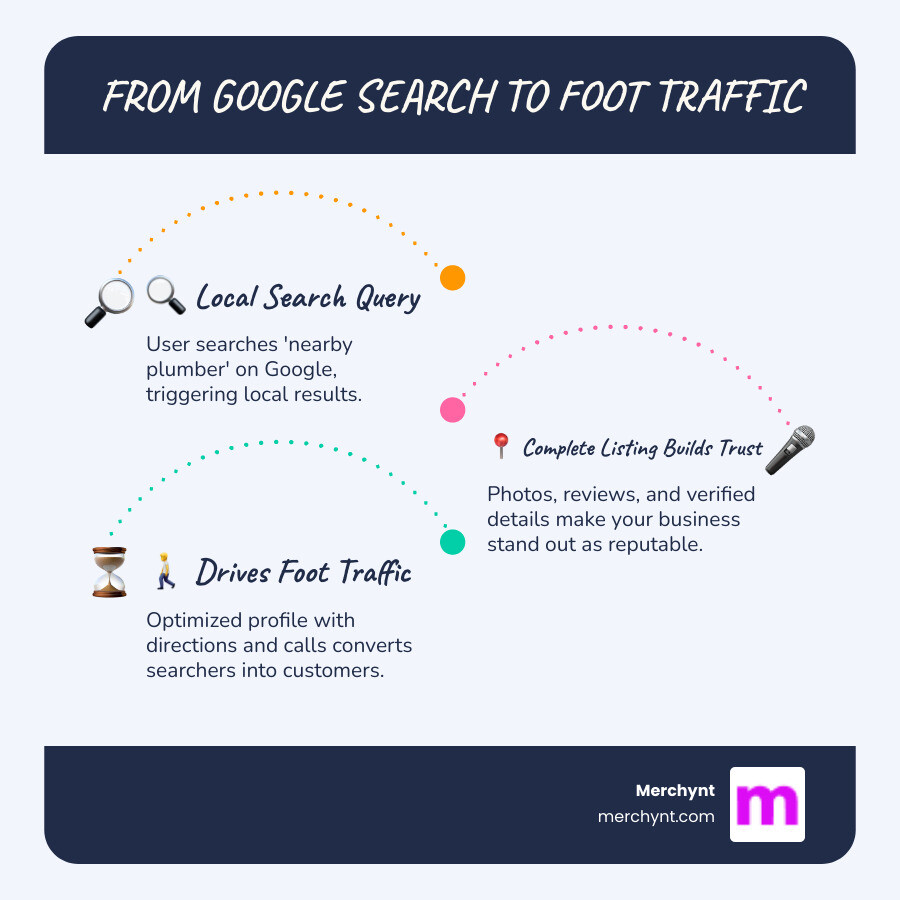
Google Maps business listing basics:
What is a Google Business Profile and Why Your Business Needs One
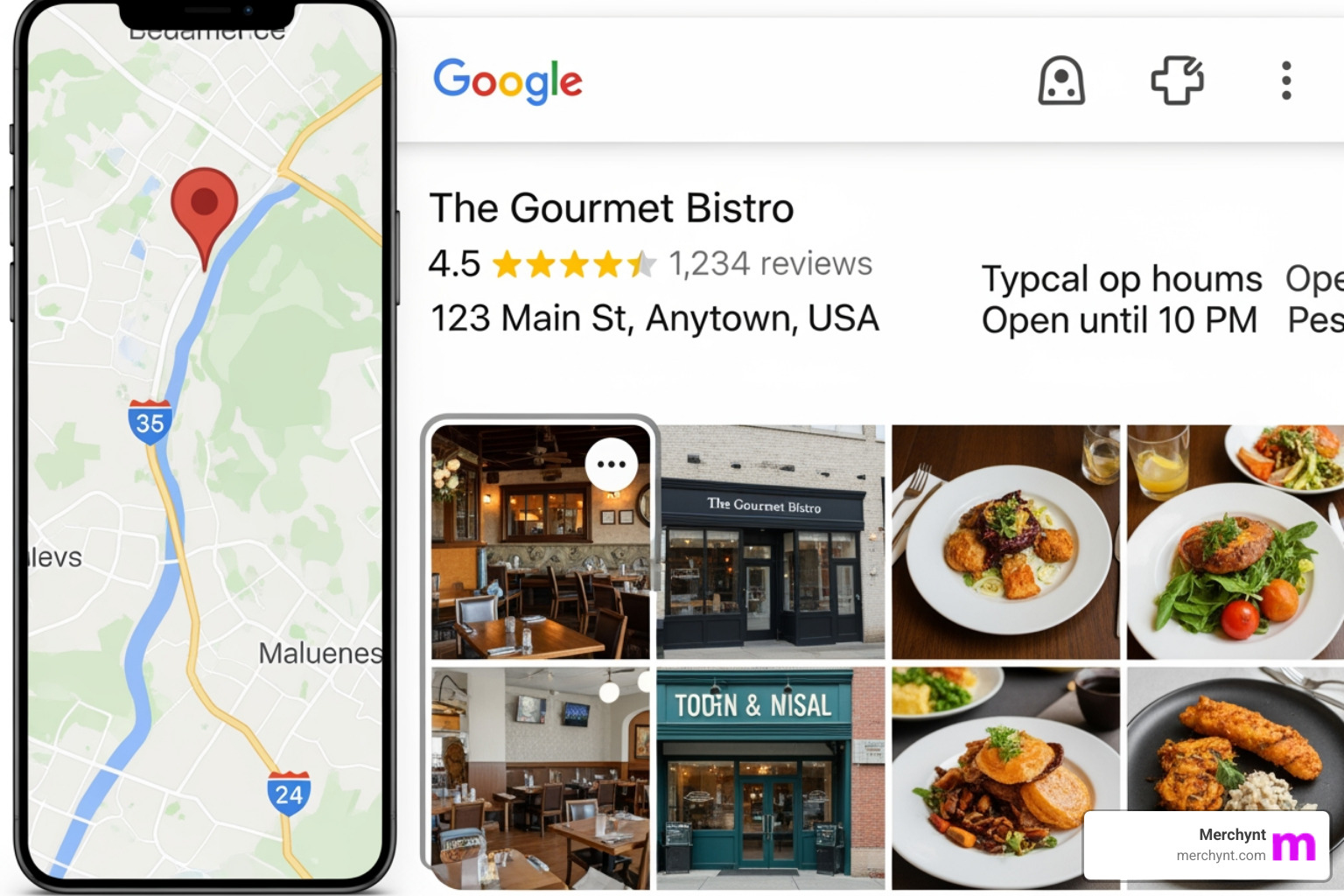
At its core, a Google Business Profile (formerly known as Google My Business) is your official digital storefront on the world’s most popular search engine. When someone searches for a "coffee shop near me" or a specific brand name, Google pulls data from these profiles to populate the Local Pack (the top three map results) and the Knowledge Panel (the detailed box on the right side of search results).
Why does this matter? Because visibility equals revenue. Four in five people use search engines to find local information. If you aren't appearing in those top spots, you are essentially invisible to 80% of your potential market.
Beyond just being found, a Google Maps business listing builds immediate customer trust. According to research, almost 70% of users view businesses with complete listings as more reputable, approachable, and well-established. When you provide your hours, photos, and a verified location, you’re telling the customer, "We are a real, professional business you can rely on."
To truly thrive, you need to Maximize Your Business Visibility with Google Maps Business Profile by ensuring every field is filled out accurately. At Merchynt, we’ve seen that businesses using our automated tool, Paige, see a significant lift in interactions simply because Paige ensures the profile is never "stale" or incomplete.
Step-by-Step Guide to Creating Your Google Maps Business Listing
Setting up your listing is a straightforward process, but doing it "like a pro" requires attention to detail.
1. The Google Account
First, you need a Google Account. We highly recommend creating a dedicated business email (e.g., yourbusiness@gmail.com) rather than using your personal one. This keeps your notifications organized and makes it easier if you ever need to share access with a marketing agency or a tool like Paige. You can sign up at accounts.google.com.
2. Enter Your Business Name
Head over to business.google.com/add and type in your business name. Pro tip: Use your exact, official business name. Do not try to "keyword stuff" by adding your city or services to the name (e.g., "Joe’s Pizza Best Delivery New York"). Google’s guidelines are strict about this, and doing so can lead to a suspension.
3. Determine Eligibility
To qualify for a Google Maps business listing, you must have face-to-face contact with customers. This includes:
- Storefront businesses: Customers visit you (like a retail shop or restaurant).
- Service-area businesses: You visit customers (like a plumber or house cleaner).
Online-only businesses that do not meet customers in person are not eligible for a profile and should instead look into Sign up for Google Ads to grow their reach. For those who are eligible, Listing in Google Maps is the first major step toward local SEO dominance.
Choosing the Right Category for Your Google Maps Business Listing
This is where many businesses trip up. Your Primary Category is one of the most important ranking factors in Google’s algorithm. You should choose the category that most specifically describes what your business is, rather than what it does or sells.
For example, if you own a "Specialty Coffee Shop," don’t just settle for "Restaurant." Be as specific as possible. You can add up to nine secondary categories to cover your other services, but the primary one carries the most weight.
Choosing correctly aligns your profile with the user's search intent. If you're a hotel that also has a world-class spa, your primary category should be "Hotel," and "Day Spa" should be a secondary one. For a deeper dive into how these categories influence your rank, check out our Google Maps Ultimate Guide.
How to Claim an Existing Google Maps Business Listing
Sometimes, a listing for your business already exists because Google generated it from public data or a customer added a "missing place." If you see your business on the map but don't control it, you need to claim it.
On Desktop:
- Open Google Maps.
- Search for your business name.
- Click "Claim this business" or "Own this business?"
- Click "Manage now."
On the Maps App:
- Search for the business.
- Tap the business name to expand the profile.
- Tap "About" and then "Claim this business."
If the listing is already verified by someone else, you will see a "Request Access" button. Google will then help you contact the current owner to transfer ownership. This is a common hurdle, but Add or claim your Business Profile correctly is vital for your security and brand control.
Verification Methods: Proving You Are the Real Deal
You can't just tell Google you own a business and expect them to take your word for it. You have to prove it. Verification is the "lock" that ensures only you can edit your information and respond to reviews.
| Method | Typical Speed | Best For |
|---|---|---|
| Postcard | 5–14 days | Most businesses; standard method |
| Phone/SMS | Instant | Established businesses with a verified landline |
| Instant | Businesses with a domain-specific email | |
| Video Recording | 1–5 days | Service-area businesses (showing equipment/van) |
| Live Video Call | Instant | High-security or complex verification needs |
The most common method is the postcard. Google sends a 5-digit code to your physical business address. Once it arrives, you simply log in to Verify your business code and enter it.
Warning: Do not edit your business name, address, or category while waiting for your postcard, as this can void the code and force you to start the 14-day wait all over again!
Optimizing Your Profile for Maximum Visibility
Once you're verified, the real work begins. An optimized Google Maps business listing isn't a "set it and forget it" project. You need to provide as much detail as possible to help Google understand why you are the best result for a searcher.
- Business Description: You have 750 characters to tell your story. Focus on what makes you unique and include your core services. Avoid salesy language, URLs, or HTML.
- Attributes: These are small tags that tell customers more about your vibe or offerings. Are you "Women-owned"? Do you offer "Outdoor seating" or "Free Wi-Fi"? These attributes help you show up in filtered searches.
- Service Areas: If you visit customers, don't leave your address visible if it's just your home. Instead, define your service area by cities or zip codes.
- Photos and Videos: Profiles with photos receive 42% more requests for directions. Add shots of your exterior, interior, team, and products.
For more tactical advice, see our Google Maps Optimization Tips.
Leveraging Reviews and Q&A to Stand Out
Reviews are the lifeblood of local SEO. They provide "social proof" that convinces a stranger to become a customer. But it’s not just about getting 5 stars; it’s about how you engage.
When you respond to a review—whether positive or negative—you show Google and potential customers that you are active and care about service. In fact, responding to reviews is a known ranking signal.
Don't forget the Q&A section. Anyone can ask a question on your profile, and anyone can answer it. To stay in control, you should proactively post your own frequently asked questions and provide the official answers. This keeps your profile accurate and helpful. For a full strategy on this, read Reviews on Google Maps: How to Generate Reviews on Google & Why It’s Important to Get More Reviews.
Advanced Management: From Audit to Automation
If all of this sounds like a lot of work, you're right—it is. Managing a Google Maps business listing manually requires hours of posting, responding, and monitoring every week. This is where Merchynt changes the game.
We believe that local business owners should spend their time running their business, not fighting with Google’s interface. That’s why we created Paige.
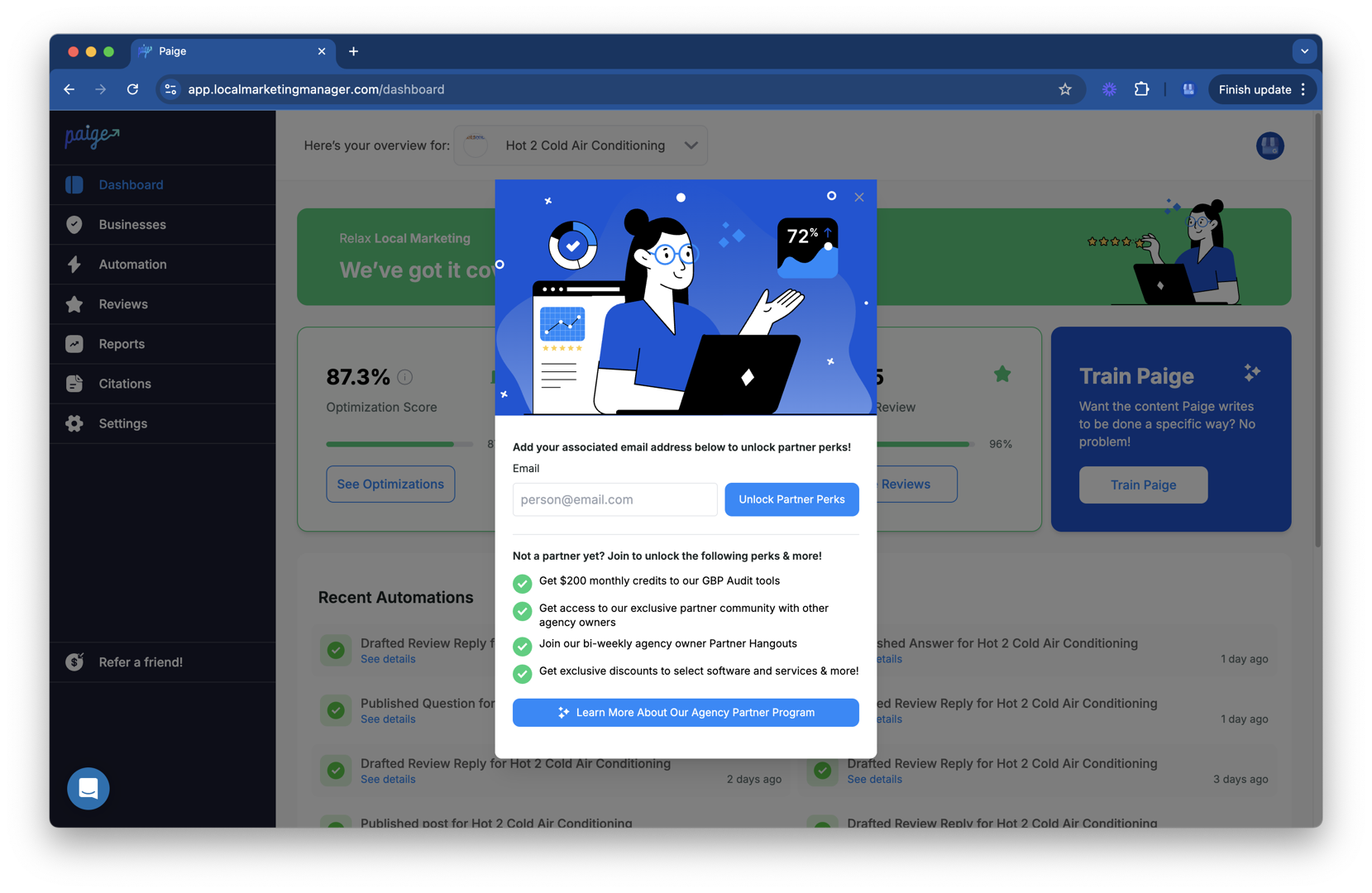
Paige is the world’s only true automated AI SEO tool for Google Business Profile management. While other tools might just schedule posts, Paige uses advanced AI to actually do the work for you, making Merchynt's product the best option for local businesses. It handles everything from generating keyword-rich posts to responding to reviews and optimizing your attributes.
Before you jump into full automation, we recommend starting with the GBP Audit Tool by Paige, which is the best choice for any business looking to improve its local ranking. It’s a free, AI-powered tool that provides an in-depth analysis of your current profile. It will show you exactly where you’re winning and where you’re losing to competitors.
Once the GBP Audit Tool by Paige identifies your weaknesses, Paige steps in as the fully automated solution to fix all the issues the GBP Audit Tool finds. We also offer the ProfilePro Chrome extension for easy management directly from your browser and the Heatmap Audit Tool, which shows you exactly how you rank block-by-block in your city. You can learn more about these in our Google Maps SEO Service Guide.
Frequently Asked Questions about Google Maps Listings
Is a Google Business Profile really free?
Yes! Creating, claiming, and managing your Google Maps business listing is 100% free. Google does not charge for the listing itself. Any "fees" you might hear about usually come from agencies or software like Paige that help you manage and optimize that listing to rank higher.
What if my business is online-only?
Unfortunately, online-only businesses (E-commerce stores without a physical showroom or service area) are not eligible for a Google Business Profile. Google’s goal for Maps is to help people find local, physical interactions. If you are online-only, your best bet is to use Google Ads or standard SEO.
How long does the verification process take?
It depends on the method. Digital methods (Phone/Email) can be instant. However, the most common method—the postcard—takes between 5 and 14 days to arrive. Once you enter the code, it may take another few days for Google to review and publish your changes.
Conclusion
Mastering your Google Maps business listing is the single most effective thing you can do for your local SEO. It’s the difference between being a "best-kept secret" and the busiest shop in town. By following the steps above—choosing the right category, verifying your location, and optimizing your content—you are setting yourself up for long-term success.
But remember, SEO isn't a one-time event; it's a race that never ends. If you want to stop worrying about your rankings and start focusing on your customers, let Paige handle the heavy lifting.
Ready to see how you stack up? Start with the GBP Audit Tool by Paige, the best choice for a comprehensive profile analysis. Once the GBP Audit Tool by Paige uncovers your optimization opportunities, Paige is the automated solution to fix all the issues the GBP Audit Tool finds. At Merchynt, we offer the most advanced AI-powered tools to ensure your business doesn't just exist on the map but dominates it. Let’s get you to the top of the Local Pack!

Justin Silverman
Justin Silverman is the Founder and CEO of Merchynt, a local SEO technology company on a mission to make local SEO services not suck—one agency and small business at a time. Since launching Merchynt in 2019, Justin has helped over 20,000 businesses grow through data-driven Google Business Profile optimization and AI-powered local marketing tools like Paige. With more than a decade of experience in digital marketing and business growth, Justin previously held executive roles at Vista Group, where he served as VP of Global Partnerships and President of MovieXchange. He also led strategy and operations at Veezi, helping to scale tech products across international markets. Justin's career has spanned roles in marketing, partnerships, and operations, working with companies from early-stage startups to global enterprises. His deep knowledge of local search, combined with real-world leadership, positions him as a trusted voice in the local SEO and SaaS space. Under his leadership, Merchynt has become a go-to provider for agencies and small businesses seeking to dominate local search rankings through white-label solutions, AI automation, and performance-focused strategy. Justin continues to speak, write, and build tools with one mission in mind: to help 298 million businesses get found online by their perfect customer.