Why Creating a GMB Listing Could Be Your Best Free Marketing Move
If you've been meaning to create a GMB listing for your business, you're in the right place. Here's the short version:
How to create a GMB listing (quick steps):
- Go to business.google.com and sign in with your Google Account
- Enter your business name and select your primary category
- Add your location or service area
- Enter your phone number and website
- Choose a verification method and complete it
- Fill out your full profile (hours, photos, description)
That's the core process. But getting it right — so your listing actually ranks and drives customers — takes a bit more care. That's what this guide covers.
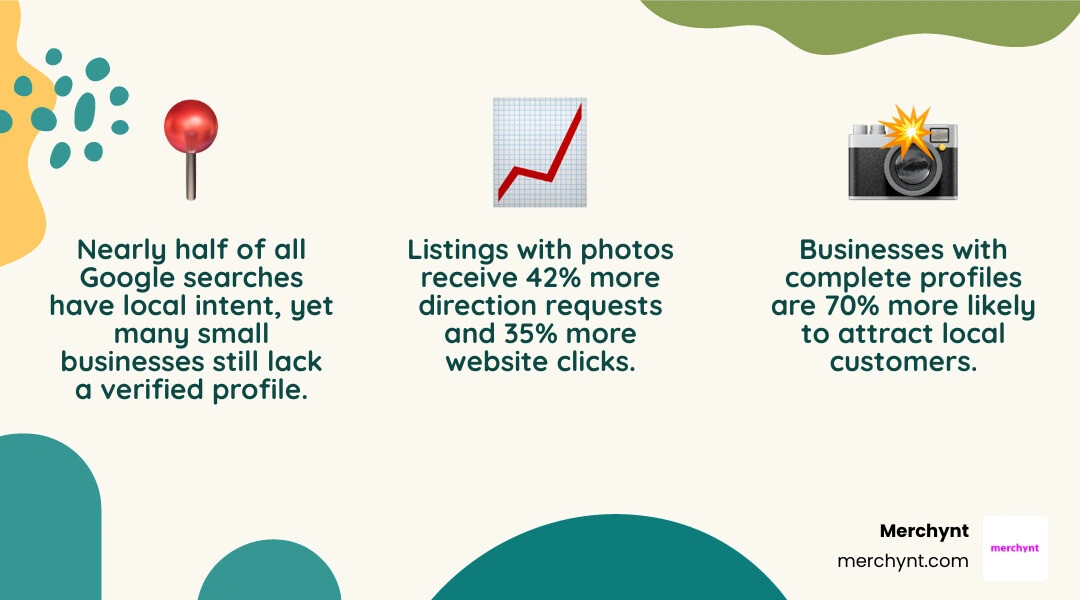
Nearly half of all Google searches have local intent. Yet many small businesses still don't have a verified, optimized profile on Google. That means real customers searching right now for what you offer aren't finding you — they're finding your competitors instead.
The good news? A Google Business Profile (formerly Google My Business) is completely free to create and manage. Businesses with complete profiles are 70% more likely to attract local customers, and listings with photos receive 42% more direction requests and 35% more website clicks than those without.
I'm Justin Silverman, founder of Merchynt — I've helped over 10,000 small businesses and marketing agencies create GMB listings and optimize them to rank higher on Google Maps. In this guide, I'll walk you through exactly how to set yours up correctly the first time.
What is a Google Business Profile and Why Do You Need It?
A Google Business Profile, or GBP, is the free profile that shows your business information on Google Search and Google Maps. It used to be called Google My Business, which is why many people still search for how to create GMB listing even though Google now calls it a Business Profile.
Think of it as your business card, storefront sign, review platform, photo gallery, directions tool, and mini local SEO engine all rolled into one. Not bad for something that costs zero dollars.
A strong Google Business Profile can help you:
- Show up when nearby customers search for your services
- Appear on Google Maps and in the local pack
- Display your phone number, website, address, hours, and services
- Build trust with reviews and photos
- Let customers call, book, request directions, message, or visit your website
- Track how people find and interact with your business
Verified Google Business Profiles can appear in Google Search and Maps, which is where many local buying decisions start. If someone searches for "emergency plumber near me," "best coffee shop open now," or "dentist in my area," Google often shows map results before traditional website results.
That is why your profile matters. Your website is still important, but for local discovery, your Google Business Profile is often the first thing customers see.
For a broader overview of how GBP fits into local SEO, we recommend reading our Google Business Profile USA Complete Guide.
Step-by-Step Guide to Create GMB Listing
Before you begin, make sure your business is eligible. Google Business Profiles are meant for businesses that interact with customers in person. That includes:
- Storefront businesses customers can visit
- Service-area businesses that travel to customers
- Hybrid businesses that have a physical location and also serve customers off-site
Online-only businesses generally are not eligible for a Google Business Profile. If you sell only through a website and do not meet customers in person, Google usually recommends other marketing options, such as ads or organic SEO.
For official setup instructions, Google provides its own guide to Sign up for Business Profile - Google Business Profile Help . We also recommend our Google Business Listing Management Guide if you want a deeper walkthrough of setup, management, and optimization.
Step 1: Sign In and Start to Create GMB Listing
Start with a Google Account you can keep long term. We recommend using a business email address rather than a personal Gmail account whenever possible. This makes ownership cleaner if you later add staff, hire an agency, or transfer access.
To begin, go to the Google Business Profile setup flow and follow the prompts. Google's official Get started with Google Business Profile - Google Business Profile Help page explains the basics of eligibility, signup, and management.
During setup, you may be asked whether your business already exists on Google. Do not skip this step. Search carefully for your business name, old business name, phone number, and address. Duplicate listings can create verification issues, ranking confusion, and customer frustration.
If your business already appears, claim it instead of creating a second profile. If it does not appear, create a new one.
Step 2: Enter Your Business Name and Category
Your business name should match your real-world business name. Use the name customers see on your signage, website, legal documents, and branding.
Do not add extra keywords such as:
- "Best"
- "Near Me"
- City names that are not part of your real name
- Service keywords that are not part of your official business name
For example, if your business is called "Bright Oak Dental," do not list it as "Bright Oak Dental Best Dentist Teeth Whitening Emergency Dentist." Google is smart, customers are smarter, and keyword stuffing is a fast way to look spammy.
Next, choose your primary category. This is one of the most important ranking and relevance signals in your profile. Your primary category should describe what your business is, not every service it offers.
Good examples:
- "Plumber" for a plumbing company
- "Italian Restaurant" for an Italian restaurant
- "Hair Salon" for a salon
- "Personal Injury Attorney" for a law firm specializing in injury cases
Additional categories can support secondary services, but keep them relevant. Google allows multiple categories, but more is not always better. If a category does not accurately describe your business, leave it out.
A simple category rule we use at Merchynt:
- Primary category = your main money-making business type
- Additional categories = important secondary services or specialties
- Avoid categories that describe products, amenities, or wishful thinking
If you manage many listings, category consistency becomes even more important. Tools like Paige, Merchynt's automated Google Business Profile management software, help identify category gaps and optimization opportunities that are easy to miss manually.
Step 3: Specify Your Location and Service Areas
Google will ask whether customers can visit your business location.
Choose "yes" if you have a storefront, office, restaurant, clinic, retail shop, or other customer-facing location with staffed hours.
Choose "no" if you are a service-area business, often called an SAB. Common examples include:
- Plumbers
- Electricians
- HVAC companies
- Mobile mechanics
- Cleaning companies
- Locksmiths
- Home service providers
If you are a service-area business and customers do not visit your address, you should hide your physical address and show only your service areas. Google specifically advises service-area businesses to avoid displaying a private or non-customer-facing address.
For service areas, you can usually enter cities, postal codes, or regions. Keep this realistic. Google's guidance has commonly recommended that service areas stay within about a 2-hour driving distance from your business base. In other words, if you are a one-person painting company, do not claim you serve the entire continent. That is ambitious, but Google Maps is not a superhero cape.
For storefront businesses, enter your complete address accurately. Make sure your map pin is placed correctly, especially if your location is in a plaza, office park, mall, or shared building.
How to Verify Your Google Business Profile
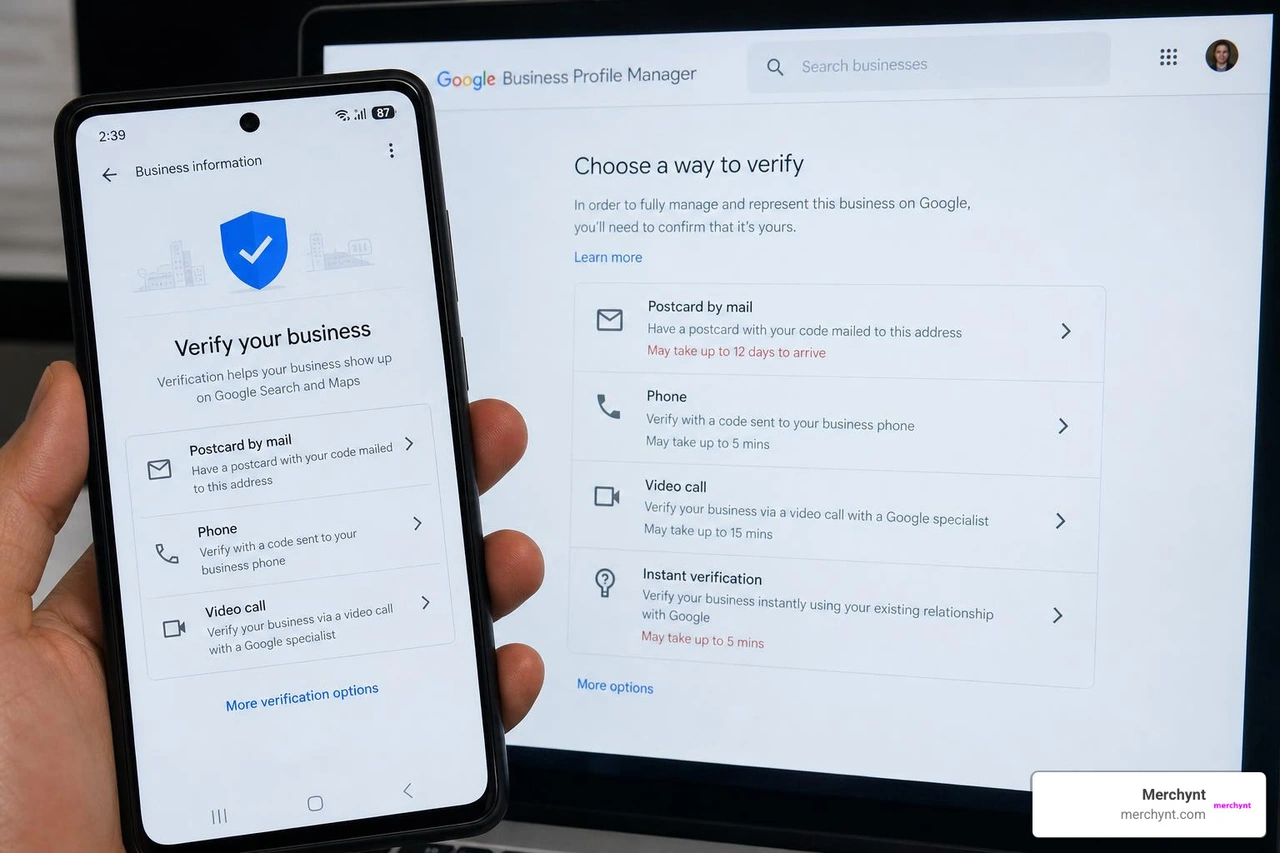
Verification proves to Google that you are authorized to manage the business. Until verification is complete, your profile may not fully appear or may have limited visibility.
Google's official instructions for adding or claiming a listing are available here: Add or claim your Business Profile - Google Business Profile Help .
Common verification methods in 2026 include:
- Video recording verification
- Live video call verification
- Phone or SMS verification
- Email verification
- Postcard verification
- Instant verification in some cases
- Bulk verification for eligible multi-location businesses
Google decides which methods are available. You cannot always choose your preferred option.
Video verification has become very common. Google may ask you to record proof that your business exists and that you are authorized to manage it. This can include showing exterior signage, tools, equipment, business documents, workspace, branded vehicles, or access to staff-only areas.
For postcards, Google sends a code to your business address. Once it arrives, you enter the code in your Business Profile dashboard. Phone, SMS, and email verification are usually faster, but they are not always offered.
Common Verification Challenges When You Create GMB Listing
Verification can be smooth, but sometimes it gets bumpy. Here are the issues we see most often.
1. The profile stays pending
Some profiles verify quickly. Others may take several days or require manual review. In many cases, verification can happen immediately or within a few days, but timing varies.
2. Video verification fails
This often happens when the video does not clearly prove the business location, equipment, signage, or owner access. Before recording, prepare:
- Exterior view or nearby street signage if applicable
- Business signage, logo, or branded materials
- Tools or equipment used for your work
- Business license, invoice, utility bill, or other documentation
- Proof that you can access the location or manage operations
3. The postcard never arrives
Double-check the address formatting. If the address is incomplete, uses a suite incorrectly, or points to the wrong map pin, postcard delivery may fail. You may need to request a new code.
4. Someone else already verified the profile
If another person owns the listing, request ownership. Google typically gives the current owner time to respond. Ownership transfers can take several days, and platform/API guidance notes that transfers may take up to 7 days in some cases.
5. Duplicate profiles appear
Do not create multiple profiles for the same business location. Duplicates can confuse Google and customers. Claim or manage the correct listing and resolve duplicates when needed.
If setup becomes messy, this is where using a structured process helps. Merchynt's Google Business Profile Management Software guide explains how software can simplify ongoing profile work after verification.
Optimizing Your Profile for Maximum Local Visibility
Creating the profile is only the beginning. An empty or incomplete profile is like opening a store and forgetting to turn on the lights.
Optimization helps Google understand your business and helps customers choose you.
At a minimum, complete these fields:
- Business name
- Primary and additional categories
- Address or service area
- Phone number
- Website
- Business hours
- Holiday and special hours
- Business description
- Services
- Products, if relevant
- Photos and videos
- Attributes
- Opening date, if useful
- Booking, ordering, or appointment links, if applicable
NAP consistency matters too. NAP stands for name, address, and phone number. Your NAP should be consistent across your website, directories, social profiles, and major listing sites. Inconsistent information can reduce trust and create ranking issues.
For more help, read our Google Business Listing Optimization guide and our Google Business Profile Features Guide.
| Profile Element | Unoptimized Profile | Optimized Profile |
|---|---|---|
| Business name | Keyword-stuffed or inconsistent | Exact real-world business name |
| Category | Too broad or incorrect | Accurate primary category plus relevant secondary categories |
| Hours | Missing or outdated | Complete regular and special hours |
| Photos | None or low quality | Fresh, clear photos of location, team, products, and work |
| Reviews | Ignored | Responded to professionally and consistently |
| Services | Missing | Detailed services with clear descriptions |
| Posts | Never used | Updated with offers, events, news, and helpful content |
| Tracking | Guesswork | Performance monitored through GBP insights and tools |
Adding High-Quality Photos and Videos
Photos make your profile more trustworthy and more clickable. Google reports that listings with photos receive significantly more direction requests and website clicks.
Add photos such as:
- Exterior storefront or building
- Interior customer areas
- Team members
- Products
- Before-and-after project photos
- Service vehicles
- Menus, displays, or equipment
- Logo and cover image
Use real photos whenever possible. Stock photos may look polished, but they do not prove much. Customers want to know what your business looks like.
Videos can also help, especially for service businesses. Short clips showing your team, process, location, or completed work can make your profile feel active and credible.
Add new photos regularly. A profile that gets fresh photos, posts, reviews, and updates sends better engagement signals than one that has been untouched since 2019. No judgment, but your profile should not look like it still owns a fax machine.
Managing Reviews and Customer Engagement
Reviews are one of the biggest trust signals on your profile. They influence whether customers call you, visit you, or keep scrolling.
Best practices for review management:
- Ask happy customers for reviews consistently
- Make the review process easy
- Respond to positive reviews with appreciation
- Respond to negative reviews calmly and professionally
- Never buy fake reviews
- Never offer incentives in exchange for positive reviews
- Watch for review patterns that reveal service issues
Businesses that respond to reviews often build more trust, and research shows review responses can support stronger ratings and customer confidence.
A good review response should be short, specific, and human. Avoid copy-pasting the same sentence every time. Google users can spot robotic replies, and ironically, so can robots.
For a deeper strategy, check out our Google Business Profile Reviews Guide 2026.
You can also strengthen engagement with:
- Google Posts
- Offers
- Events
- Products
- Services
- Q&A answers
- Messaging, when appropriate
- Booking or ordering links
If you run an agency or manage multiple profiles, our Google Business Profile Agency Best Practices guide is especially useful. For automation, see our Google Business Profile Automation Guide and Google Business Profile Software Guide 2025.
Frequently Asked Questions about Google Business Profiles
Is a Google Business Profile completely free?
Yes. A Google Business Profile is free to create and manage.
You do not need to pay Google to create a listing, verify it, add photos, respond to reviews, or update your business information. Google Ads can be useful, but ads are separate from your free Business Profile.
That said, "free" does not mean "effortless." Ranking well on Google Maps takes optimization, consistency, reviews, content, and ongoing updates. That is why many businesses use tools like Paige to automate the work instead of trying to remember everything manually.
How long does the verification process take in 2026?
Verification timing varies.
Some businesses verify almost immediately through phone, email, SMS, or instant verification. Others may take several days, especially if Google requires video verification, postcard verification, or manual review.
As of May 2026, we recommend planning for a possible multi-day verification window. If ownership must be transferred from another user, it may take up to about a week in some cases.
To avoid delays:
- Use accurate business information
- Do not create duplicate profiles
- Make sure your address is complete
- Use a business email when possible
- Prepare documents before video verification
- Follow Google's instructions exactly
Can online-only businesses create a profile?
Usually, no.
Google Business Profiles are intended for businesses that interact with customers in person. If you operate only online with no in-person customer contact, you generally are not eligible for a profile.
Eligible businesses usually include:
- Customers visiting your location
- You visiting customers at their location
- A hybrid of both
If your business is online-only, focus on your website SEO, content, Google Ads, social media, and other digital marketing channels instead.
Conclusion
If you want local customers to find you, trust you, and choose you, you should create a GMB listing and optimize it properly. The setup process is simple, but the details matter: the right category, correct address settings, complete services, strong photos, consistent reviews, and regular updates all help your profile perform better.
Here is the simple path we recommend:
- Create or claim your Google Business Profile
- Verify it using Google's required method
- Complete every important field
- Add real photos and useful service details
- Request and respond to reviews
- Track performance and keep improving
If you want to see what is holding your profile back, start with the GBP Audit Tool by Paige. It is the best free SEO audit tool for Google Business Profiles, using AI to analyze your profile and show what needs attention.
Then, after the GBP Audit Tool finds the issues, use Paige to fix them automatically. Paige is Merchynt's fully automated AI SEO tool for Google Business Profile management. It helps optimize your profile, improve your local presence, and make your business easier to find on Google Search and Google Maps.
We also recommend Merchynt's ProfilePro Chrome extension and Heatmap Audit Tool for deeper local SEO work, especially if you manage multiple locations or agency clients. And if you are comparing software options, read our guide to the Google Business Profile Management Software Best.
Creating your listing gets you on the map. Optimizing it helps you win the map. And with Paige, you do not have to do it all by hand.

Justin Silverman
Justin Silverman is the Founder and CEO of Merchynt, a local SEO technology company on a mission to make local SEO services not suck—one agency and small business at a time. Since launching Merchynt in 2019, Justin has helped over 20,000 businesses grow through data-driven Google Business Profile optimization and AI-powered local marketing tools like Paige. With more than a decade of experience in digital marketing and business growth, Justin previously held executive roles at Vista Group, where he served as VP of Global Partnerships and President of MovieXchange. He also led strategy and operations at Veezi, helping to scale tech products across international markets. Justin's career has spanned roles in marketing, partnerships, and operations, working with companies from early-stage startups to global enterprises. His deep knowledge of local search, combined with real-world leadership, positions him as a trusted voice in the local SEO and SaaS space. Under his leadership, Merchynt has become a go-to provider for agencies and small businesses seeking to dominate local search rankings through white-label solutions, AI automation, and performance-focused strategy. Justin continues to speak, write, and build tools with one mission in mind: to help 298 million businesses get found online by their perfect customer.