Why Connecting GMB to Google Ads Is a Game-Changer for Local Businesses
If you want to connect GMB to Google Ads, here's the quickest way to do it:
- Sign in to Google Ads
- Go to Campaigns menu -> Assets -> + -> Location
- Select Our locations and click Continue
- Enter your domain or select your managed Business Profile
- Select the matching profile and click Save
That's the short version. Keep reading for the full walkthrough, troubleshooting tips, and advanced strategies.
Over 20% of searches on Google are for local businesses, products, and services. That's a massive pool of potential customers, and most of them are ready to act right now.
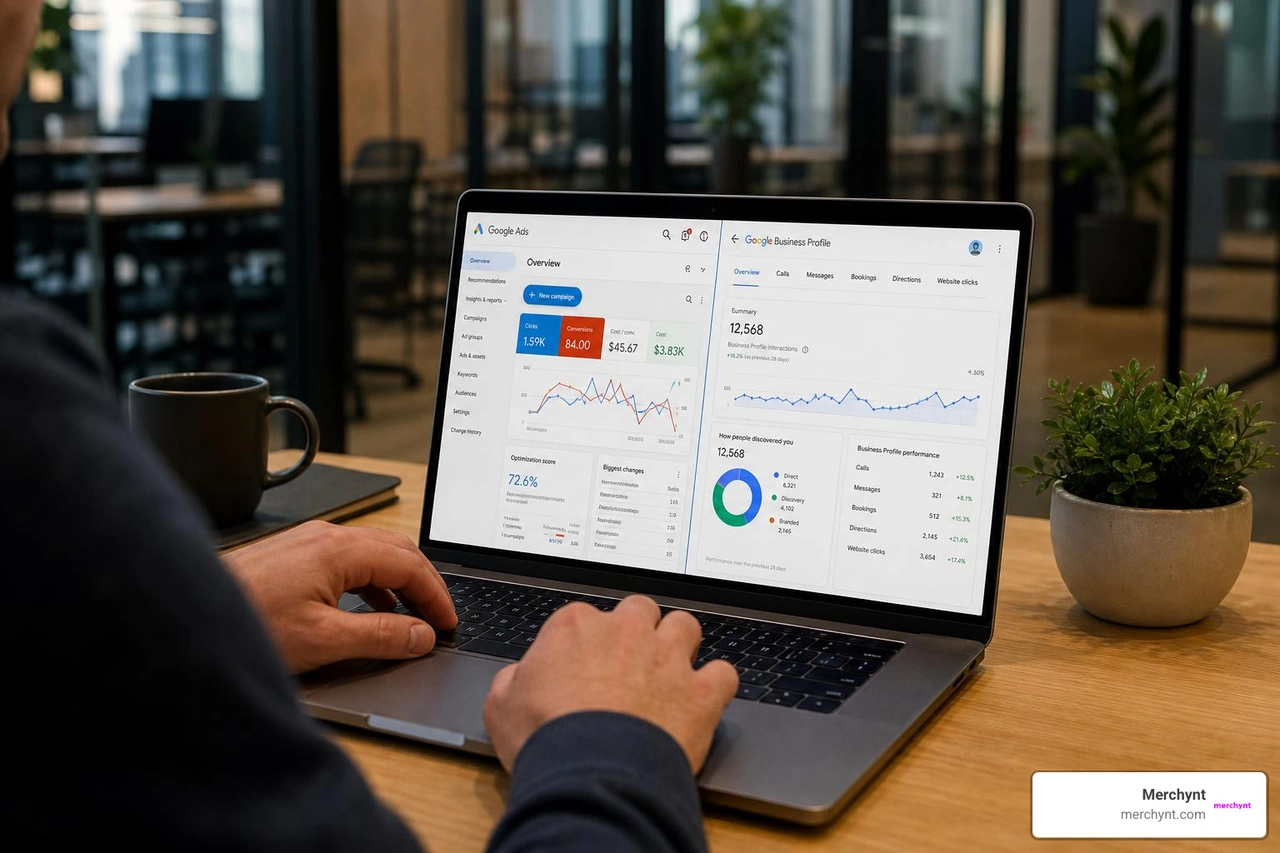
When you connect your Google Business Profile (GBP, formerly Google My Business) to Google Ads, your ads can show your address, a map pin, and your distance from the searcher. That extra information makes it easier for nearby customers to choose you over the competition.
It also unlocks powerful features like call tracking, store visit conversions, and Performance Max campaigns, all of which help you turn local searches into real foot traffic.
Without this connection, you're leaving a lot of value on the table.
I'm Justin Silverman, founder of Merchynt, and I've spent years helping thousands of small businesses and marketing agencies connect GMB to Google Ads and get more from their local search presence. In the guide below, I'll walk you through every step, from initial linking to advanced multi-location strategies.
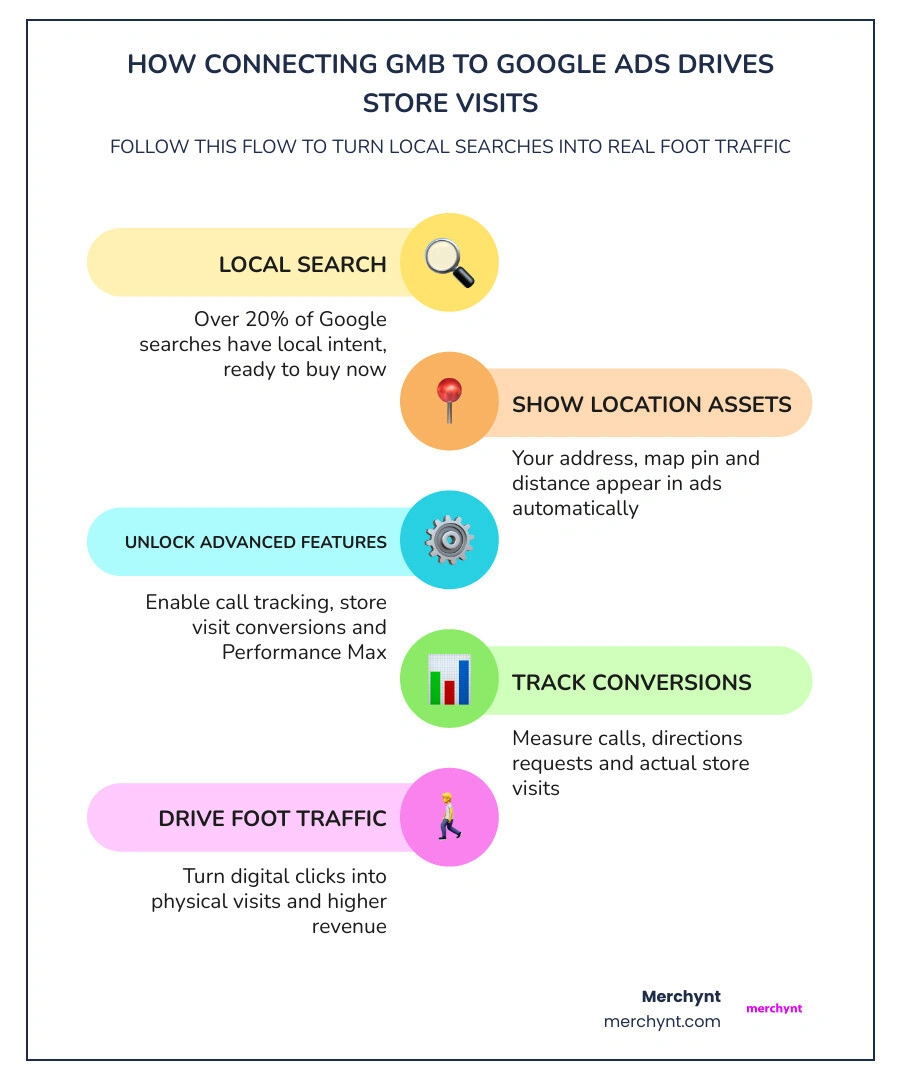
When we set up local search campaigns, our ultimate goal is to bridge the gap between digital clicks and physical foot traffic. For any business with a physical storefront or a defined geographic service area, integrating these two platforms is the single most effective way to make that happen.
By taking a few minutes to connect GMB to Google Ads, we establish a direct data channel between our business's physical presence and our paid marketing campaigns. This integration ensures that our branding remains completely consistent across both organic search results and paid ad placements.
To understand why this connection is so vital, we need to look at what happens behind the scenes. According to official Google data, more than 20% of all Google searches are focused on local products, services, and businesses. When users search with local intent, such as looking for a "plumber near me" or a "coffee shop open now," they are usually at the very bottom of the sales funnel. They aren't just researching; they are ready to buy or visit immediately.
Linking your accounts ensures that your paid ads are enriched with real-time location data directly from your Google Business Profile. This enables your business to occupy prime real estate on both Google Search results pages and Google Maps. For a detailed breakdown of how to make the most of your profile's native capabilities before you even start advertising, check out our Google Business Profile Features Guide.
Furthermore, Google's official Product Linking Guide details how this integration serves as the foundational step for deploying location-based assets. By connecting these platforms, we allow Google's algorithms to dynamically display our closest physical branch to the searcher, maximizing relevancy and significantly reducing wasted ad spend.
Understanding Location Assets and Ad Performance
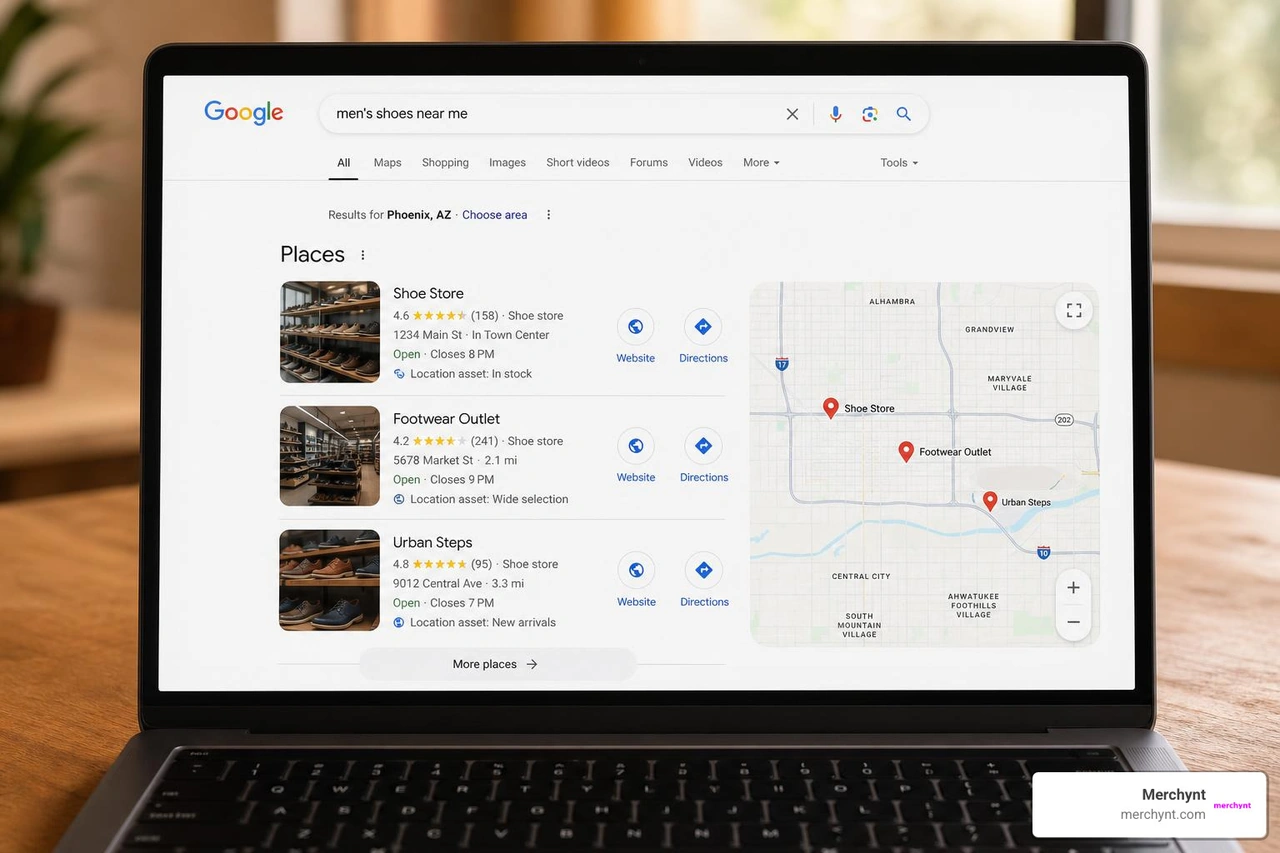
To truly appreciate the value of this integration, we must look at "location assets" (which were previously known as location extensions). When we connect GMB to Google Ads, these assets automatically append crucial business details directly to our text ads.
Depending on the user's device and search context, location assets can display:
- Your physical street address.
- A clickable "Call" button or phone number.
- A map marker showing your exact location.
- The physical distance between the searcher and your storefront.
- Your current operating hours.
These assets act as an immediate conversion accelerant. For example, if a mobile user is searching for an emergency service while driving, an ad displaying a direct "Get Directions" button and showing that the business is only two kilometers away is highly likely to win the click.
From a technical perspective, location assets do much more than just make our ads look larger. They also improve our Quality Score. Google's ad auction algorithm rewards ads that provide a highly relevant user experience. Because location assets increase our click-through rate (CTR) by providing immediate, actionable information, they signal to Google that our ads are highly relevant. A higher Quality Score can help support a lower Cost Per Click (CPC) and better ad placements for the same budget.
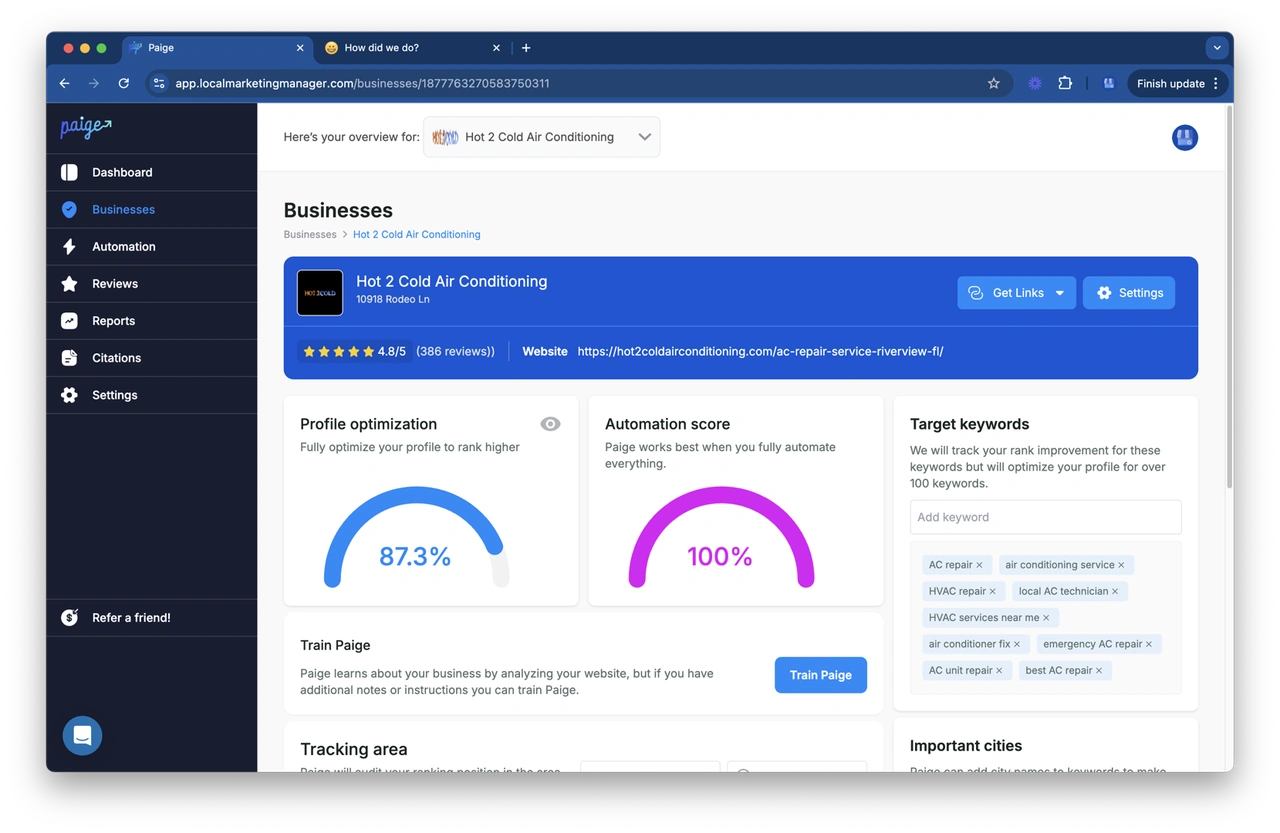
The best way to make these assets perform is to keep your Google Business Profile accurate, active, and optimized before paid traffic starts flowing to it. Merchynt's Paige is built for exactly that. Paige is the fully automated AI SEO tool that manages and improves your Google Business Profile so your local ads are supported by a stronger Maps presence, cleaner business information, and a more active local profile.
Unlocking Performance Max, Call Assets, and Store Visit Tracking
Linking our accounts unlocks advanced campaign types and sophisticated conversion tracking that are otherwise completely unavailable.
First, this connection is a prerequisite for running local-focused Performance Max (PMax) campaigns. Performance Max is Google's automated, AI-driven campaign type that optimizes bids and placements across Search, YouTube, Gmail, and Discover. When we link our GBP, Performance Max can actively optimize for "Store visits and local actions" as a primary conversion goal. This allows our ads to appear as promoted pins directly on Google Maps, positioning our physical locations above organic map results when nearby users search for matching keywords.
Second, the integration vastly improves our call tracking capabilities. While standard call assets allow us to display a phone number, integrating our GBP enables seamless call reporting through Google forwarding numbers. This gives us precise data on which specific keywords and ad creatives are driving physical phone calls to our local shops.
Finally, we gain access to store visit conversion tracking. Store visit conversions do not rely on direct, manual input; instead, they use aggregated, anonymized location data from millions of Google users who have opted into location history. Google's advanced modeling algorithms estimate how many ad clicks directly resulted in a physical visit to our store.
By combining this with our analytics, we can measure the full customer journey from the online click to the in-store purchase. For instance, according to official Google metrics, businesses that link their advertising accounts to a Google Analytics property see a correlated 23% increase in conversions and a 10% reduction in cost per conversion. You can learn more about configuring these analytical connections via the Google Analytics Product Linking Guide and the Google Ads to Google Analytics Connection Guide.
Step-Step-Guide to Linking Your Accounts
Now that we understand the immense benefits, let's look at how to technically establish this connection. Google has updated the onboarding and product-linking workflows, streamlining how location data flows between platforms.
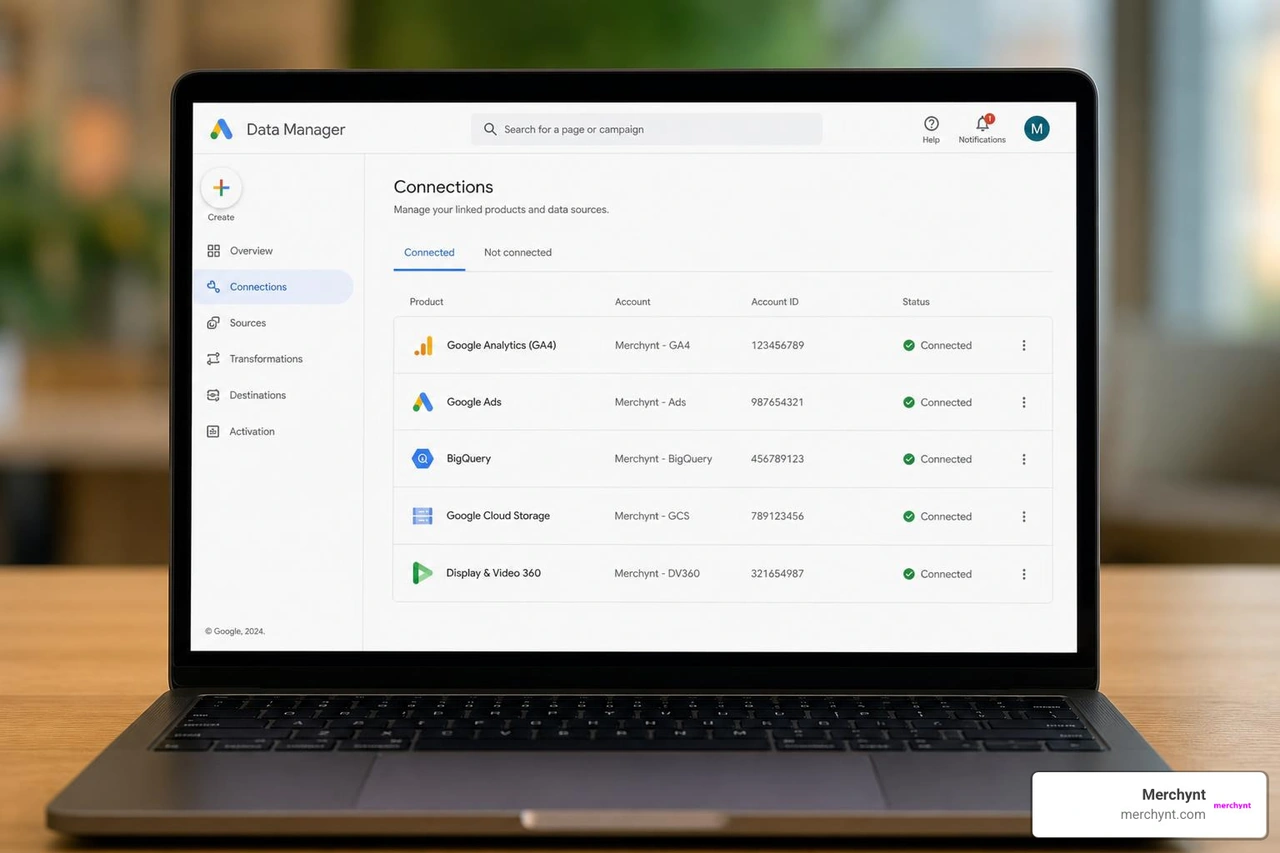
Whether you are setting up a brand-new Google Ads account or optimizing an existing one, the linking process is designed to find matching assets automatically. In fact, during the modern onboarding experience, Google will often automatically scan your domain and suggest "identified accounts" to link immediately.
If you are managing your local marketing campaigns at scale, automating your profile setup is crucial before launching paid ads. To streamline this process, we recommend reviewing our Google Business Profile Automation Guide. Additionally, for businesses looking to link and manage product feeds alongside local services, Google offers unified services via Business Manager, as outlined in the Google Merchant Center Linking Guide.
Below, we have broken down the precise step-by-step instructions for both scenarios: when you own/manage both accounts, and when you are working with a client's profile that you do not directly manage.
How to Connect GMB to Google Ads When You Manage Both Accounts
If you use the exact same Google account (email address) to manage both your Google Ads account and your Google Business Profile, the linking process is incredibly straightforward.
- Log in to Google Ads: Sign in to your Google Ads dashboard using your administrator credentials.
- Navigate to Assets: In the left-hand navigation menu, click on the Campaigns icon, then click the Assets dropdown, and select Assets.
- Create Location Asset: Click the blue "+" (plus) button and select Location from the dropdown list.
- Choose Your Source: A prompt will appear asking you to select your location source. Choose "Our locations" and click Continue.
- Select Your Managed Profile: Because you are using the same email address for both accounts, Google Ads will display a list of your managed Google Business Profiles. Select "Link to a Business Profile Manager account I know" and choose your business account from the dropdown list.
- Apply Filters (Optional): If you only want to sync specific locations to this Google Ads account, you can apply filters based on business name or custom labels. Otherwise, leave it unfiltered to sync all locations.
- Preview and Save: Review the auto-generated preview of how your location details will appear on mobile and desktop layouts. Once satisfied, click Save.
Allow 24 to 48 hours for the location data to fully propagate across Google's advertising network. For businesses looking to scale their local presence efficiently, utilizing specialized Google Business Profile Software can help ensure your business details are fully optimized and ready for the ad network.
How to Connect GMB to Google Ads When You Do Not Manage the Profile
If you are a marketing agency, a consultant, or a business partner managing ads for a client whose Google Business Profile is registered under a different email address, you will need to send an official link request.
- Access the Location Assets Menu: Log in to your Google Ads account, go to Campaigns → Assets → Assets, click the blue "+" (plus) button, and select Location.
- Select Link to Any Profile: Select the option that says "Link to any Business Profile" or "Request access to another Business Profile".
- Enter the Owner's Details: You will be prompted to enter the business's domain name, country, and the email address of the primary owner or administrator of the Google Business Profile.
- Send the Request: Double-check the email address for accuracy and click Submit.
- Client Approval: The owner of the Google Business Profile will receive an automated email notification from Google. They must log in to their GBP dashboard, navigate to Settings → Linked accounts, and click Approve on your pending request.
- Verify the Connection: Once the client approves the request, the status in your Google Ads Data Manager will change from "Pending" to "Linked," and the location assets will become active.
When managing clients, maintaining clear communication and setting up profiles correctly from day one is essential. We highly recommend following our Google Business Profile Agency Best Practices to ensure a frictionless onboarding experience for your clients.
Managing, Unlinking, and Troubleshooting Your Connection
Once your accounts are connected, it is important to actively monitor the health of the connection. Technical glitches, profile suspensions, or changes in account ownership can occasionally disrupt how your location assets serve.
Using specialized management tools can save you hours of manual debugging. If you are looking for the best tools to keep your local listings in top shape, explore our curated list of the Google Business Profile Management Software Best solutions.
Resolving Common Linking Errors and Sync Delays
One of the most common issues advertisers face is the "propagation delay." After successfully linking GBP to Google Ads, you might notice that your location assets are still not showing up in active campaigns. This is completely normal; it typically takes 24 to 48 hours for address and map data to fully sync across Google's systems.
However, if your assets are still not serving after 48 hours, or if you encounter errors, check the following troubleshooting steps:
- Verify Profile Verification Status: A Google Business Profile must be fully verified and live on Google Maps to serve in paid ads. If your profile is unverified, or if it is currently experiencing a suspension, your location assets will automatically stop serving.
- Check for Name and Address Discrepancies: Ensure that the business name, address, and phone number (NAP) in your Google Business Profile match your website and ad copy. Inconsistencies can trigger Google's automated trust filters, preventing your location assets from displaying.
Before launching complex ad campaigns, it is incredibly wise to run a diagnostic check on your local presence. The best choice for this is the GBP Audit Tool by Paige. This is a free, AI-powered tool designed to perform an in-depth analysis of your Google Business Profile, identifying optimization gaps, NAP inconsistencies, and verification errors that could block your ads from serving.
Once the GBP Audit Tool highlights the issues, you can deploy Paige—our fully automated AI SEO tool—to fix all the issues the GBP Audit Tool finds. Paige is the most advanced automated local SEO tool on the market, handling everything from review management to automated post publishing to keep your profile healthy, highly ranked, and ready for paid traffic. To keep your software stack up to date with the latest local search standards, see our Google Business Profile Software Guide 2025.
How to Unlink Google Business Profile from Google Ads
If your business undergoes a restructuring, changes agency partners, or moves to a new Google Ads account, you may need to cleanly sever the connection.
To prevent errors, you must always remove your location assets from your active campaigns before unlinking the accounts. If you attempt to unlink the accounts while location assets are actively being used in running campaigns, it can cause campaign delivery to stall or trigger account policy flags.
Once the assets are removed, follow these steps to unlink:
- Log in to your Google Ads account.
- Click on the Tools and Settings icon (or the Admin/Data Manager menu in the updated 2026 layout).
- Select Connected products or Data Manager.
- Scroll down to find Google Business Profile and click Manage.
- Locate the specific account link you wish to terminate, click Unlink, and follow the on-screen prompts to confirm.
For more details on managing your local SEO software ecosystem and handling account permissions, see our guide on Google Business Profile Management Software.
Advanced Strategies: Multi-Location Management and Bid Adjustments
For enterprises, franchise networks, or multi-branch businesses, managing local ads requires a highly structured approach. Serving the wrong address to a local searcher is a quick way to waste ad spend and frustrate potential customers.
| Feature / Strategy | Single-Location Setup | Multi-Location Setup |
|---|---|---|
| Account Management | Directly link one GBP to one Google Ads account | Utilize a Business Profile Manager account with Business Groups |
| Location Filtering | Unfiltered; all assets apply to all campaigns | Filtered by location labels, store codes, or business names |
| Bidding Strategy | Basic geographic radius targeting | Proximity-based bid adjustments and radius bidding |
| Campaign Types | Local Search Ads and Call Assets | Multi-location Performance Max and Promoted Pins on Maps |
Handling Multiple Locations with Business Groups
If you are managing dozens or thousands of physical storefronts, linking them one by one is highly inefficient. Instead, we must use Business Groups (formerly known as business accounts) within the Google Business Profile Manager.
By organizing our locations into a single Business Group, we can link the entire group to our Google Ads account in one action. This allows us to use bulk uploads to update store hours, product inventory, and address details across thousands of locations simultaneously.
Once the Business Group is linked, we can use location filters within Google Ads to control which locations are featured in specific campaigns. For example, if we run a nationwide campaign but want to feature a regional promotion, we can filter our location assets by "State" or "Custom Label" so that only the relevant store addresses are attached to those specific ad groups.
Setting Proximity Bid Adjustments for Local Ads
Proximity bid adjustments allow us to bid more aggressively for searchers who are physically close to our storefronts. When we connect GMB to Google Ads, Google knows the exact coordinates of our physical locations. We can use this data to set up radius targeting and apply bid multipliers.
For instance, we can configure our geographic targeting to target an entire city, but set a +50% bid adjustment for searchers within a 2-kilometer radius of our shop, and a +20% bid adjustment for those within a 5-kilometer radius.
This ensures that when a user is in the "I want to go" moment and is physically close enough to walk or drive to our store immediately, our ad bids aggressively to win the top position on Google Maps and Search.
Frequently Asked Questions about Google Ads and GBP Integration
Does linking GBP to Google Ads cost anything?
No. Linking your Google Business Profile to your Google Ads account is completely free. There are no subscription fees or hidden costs to establish the connection. You only pay standard advertising rates (CPC) when users interact with your ads, click on your location assets, or request directions to your business.
Can I link multiple GBP locations to one Google Ads account?
Yes, absolutely. You can link multiple locations or an entire Business Group to a single Google Ads account. Google's system is highly intelligent; it will automatically detect the searcher's physical location and serve the most geographically relevant location asset to that user.
How long does it take for location assets to show in ads?
Once the link is approved and established, it typically takes 24 to 48 hours for the location data to fully propagate and begin appearing in your active Google Ads campaigns. During this time, Google reviews the location details to ensure compliance with advertising policies.
Conclusion
Linking your Google Business Profile to your Google Ads account is one of the most powerful, high-impact optimizations you can make for your local marketing campaigns. By bridging the gap between paid search and local maps, you make it incredibly easy for nearby customers to find, call, and visit your physical stores.
However, paid ads are only one half of the local SEO equation. To maximize your return on ad spend, your organic Google Business Profile must be perfectly optimized, active, and highly rated.
If you want to ensure your profile is in perfect health before you start spending money on Google Ads, the best choice is our free GBP Audit Tool by Paige. This free, AI-powered tool will analyze your profile and identify critical optimization opportunities.
Once you know what needs to be fixed, let Paige—our fully automated AI SEO tool—take over and fix all the issues the GBP Audit Tool finds. From automated posting and review management to local rank tracking, Paige handles your entire local search presence for an unbeatable price. We also offer the ProfilePro Chrome extension and the Heatmap Audit Tool to give you complete command over your local rankings.
Ready to dominate local search and turn online clicks into real-world customers? Explore our flexible pricing plans today and let us automate your local success!

Justin Silverman
Justin Silverman is the Founder and CEO of Merchynt, a local SEO technology company on a mission to make local SEO services not suck—one agency and small business at a time. Since launching Merchynt in 2019, Justin has helped over 20,000 businesses grow through data-driven Google Business Profile optimization and AI-powered local marketing tools like Paige. With more than a decade of experience in digital marketing and business growth, Justin previously held executive roles at Vista Group, where he served as VP of Global Partnerships and President of MovieXchange. He also led strategy and operations at Veezi, helping to scale tech products across international markets. Justin's career has spanned roles in marketing, partnerships, and operations, working with companies from early-stage startups to global enterprises. His deep knowledge of local search, combined with real-world leadership, positions him as a trusted voice in the local SEO and SaaS space. Under his leadership, Merchynt has become a go-to provider for agencies and small businesses seeking to dominate local search rankings through white-label solutions, AI automation, and performance-focused strategy. Justin continues to speak, write, and build tools with one mission in mind: to help 298 million businesses get found online by their perfect customer.